Changelog
What shipped in Plansmith, in plain language: new features, improvements, and fixes, newest first.
Feature
Sonnet 5.5, Anthropic’s newest model, is now in Plansmith
Wherever Sonnet runs in Plansmith, whether you chose it or it is our default for background work, it is now Sonnet 5.5. Sonnet is also priced about a third lower than we charged for Sonnet 5, on input, output and cache reads.
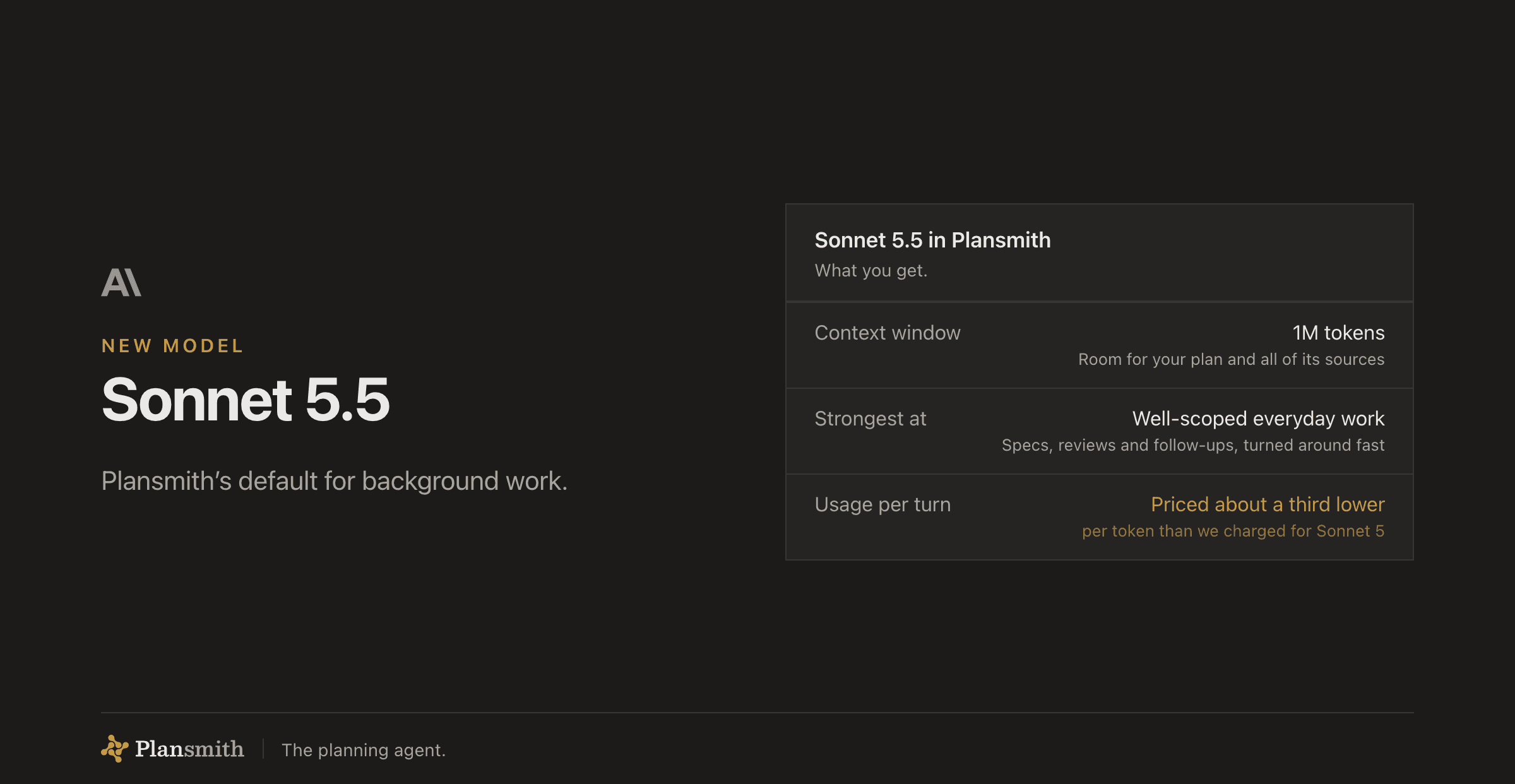
- Newest Sonnet, wherever you use it. Sonnet 5.5 answers wherever Sonnet is set: your planning conversation, delegated background work, or one of the three reviewer models. It sits alongside OpenAI, Google and xAI in Settings → Models.
- Priced a third lower. Sonnet now costs a third less per million input and output tokens than we charged for Sonnet 5, and a third less to read from cache. Sonnet 5.5 also thinks harder by default, so a long answer can use more tokens than before.
- Nothing to switch. A workspace already set to Sonnet moves across on its own. Your saved choice keeps working, and the picker simply reads Sonnet 5.5 next time you open it.
Improvement
Connectors shows when a broker can't reach your code host
If your broker loses its connection to your GitLab server, Settings → Connectors says so after three failed reads, with when it started and why (a name that doesn't resolve, a refused connection, an untrusted certificate).
Improvement
Large specs move faster.
The planning agent now reads a long spec one section at a time. On a spec with hundreds of acceptance criteria it finds an open question in 2 steps instead of 4, reading about a quarter as much. The API, the CLI and MCP read sections too.
Feature
Acceptance review: check what was built against its spec
Run
/acceptance-review on any spec and Plansmith reads your code, then reports, criterion by criterion, what was built, what is partial and what is missing, with the evidence cited.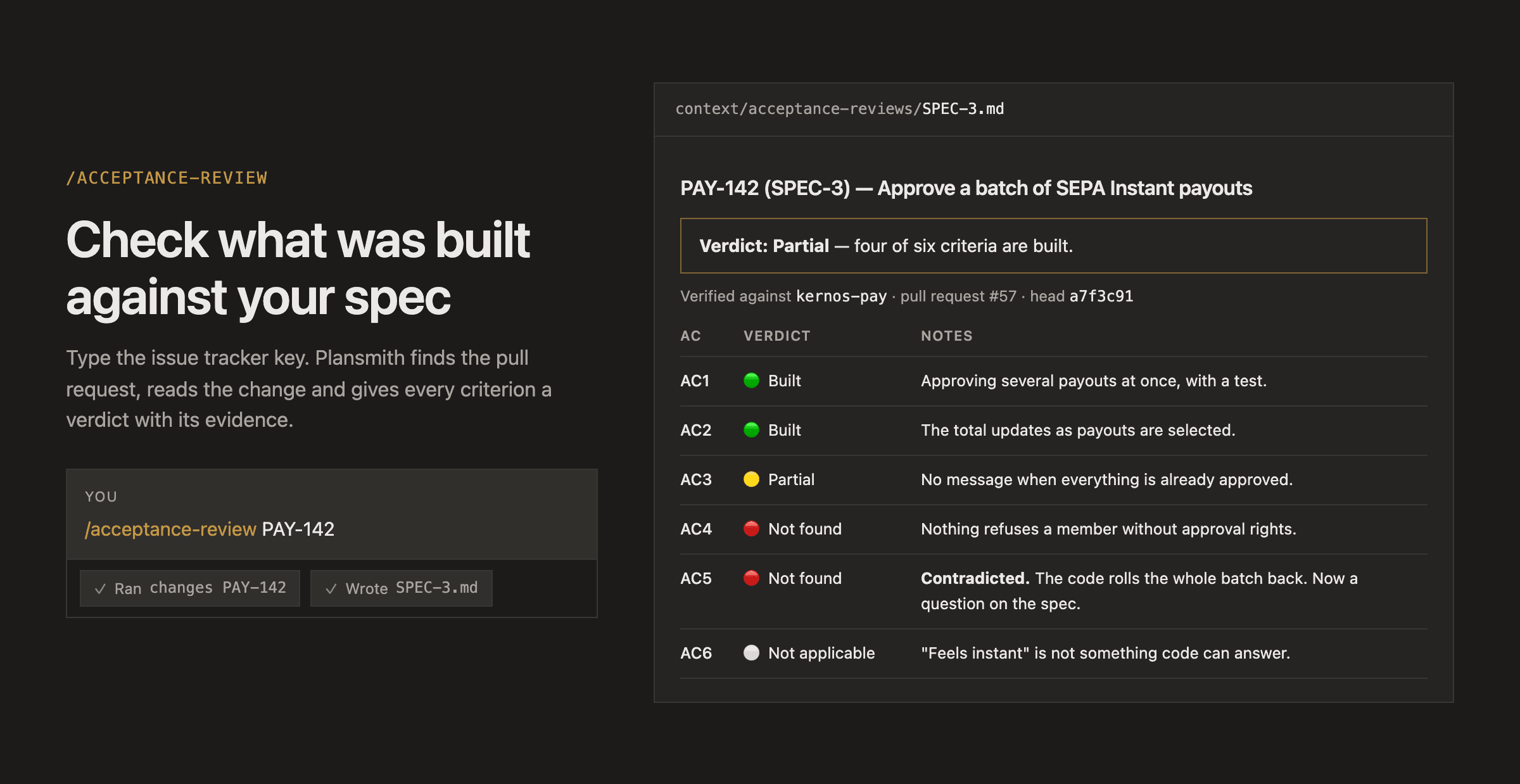
- It finds the work for you. Give it the issue tracker key and Plansmith looks for the pull request or branch that mentions it. You can also point it at a pull request, a branch, or your default branch.
- Every criterion gets a verdict. Built, Partial, Not found, or Not applicable, with the reason next to it and the exact commit named at the top.
- Your spec stays yours. Where the code and the spec disagree, it asks you instead of rewriting.
- Named the way you know them. Every review, readiness and acceptance alike, names the spec by the key you see in your issue tracker, like PAY-142.
Improvement
The agent works through your comments.
Ask it to address the open comments on a spec and it reads each thread, updates the spec, replies in the thread, and marks it Addressed. It can also resolve threads, accept suggested edits and tidy up comments, each after you approve it.
Improvement
Wireframes that look like your screens, and drawings you can keep.
Radio buttons, dropdowns and checkboxes are drawn as controls, and nothing overlaps. A screen you already have is drawn as it is. Save a drawing to context, add it to a spec or an epic, or download it. The agent can save and add too.
Feature
Pull a plan to your machine, and know when it changes.
Coding agents and your own scripts can work from a plan on disk, read its acceptance criteria as data, and tell when Plansmith has a newer version.
- plan pull.
plansmith plan pull PLAN-12saves the epic and one file per spec, plus anindex.jsonwith each spec’s acceptance criteria (id, text, and the lines written under each one) and its headings. Nothing has to parse the markdown. - plan pull --check. Exits 0 when your copy is current and 1 when it is not, naming each spec that changed. A status change alone does not count.
- Context in parts.
context download --folderor--onlydownloads one folder or the documents you name, andcontext listshows each one’s size, so a large plan still comes down. - Replace a document.
context add design.md --replaceupdates the document with that title in place. It keeps its id, so nothing that points at it breaks.
Improvement
Change a prototype faster.
With the prototype open, the agent changes just the screen you are on. For small fixes, turn on Edit and type on the screen. One click carries your edits into the specs, and you choose when an edit disagrees with one.
Improvement
Open a plan’s prototype from the terminal.
plansmith prototype pull PLAN-12 saves a plan’s prototype as an HTML file, and plansmith prototype open PLAN-12 opens it in your browser, with no web sign-in. MCP clients can read it too, with the plansmith_get_prototype tool.Improvement
See usage in dollars for each person.
Settings → Billing now shows how much each person has used in dollars, like $23.34 of $200. Moving usage is in dollars too: type an amount, or pick Half or All, and see what each person will have left before you confirm.
Improvement
Code search keeps working while a repository is indexed.
The agent searches a repository while it is indexed and names files it could not read yet. Latin-1 files are indexed too. Settings → Connectors lists each indexed repository with its projects, commit and age.
Feature
Put images anywhere in your specs and docs
Add a screenshot or mockup to a spec or a context document by typing /Image, pasting, or dropping a file, and move it, a canvas or a diagram anywhere in the document.
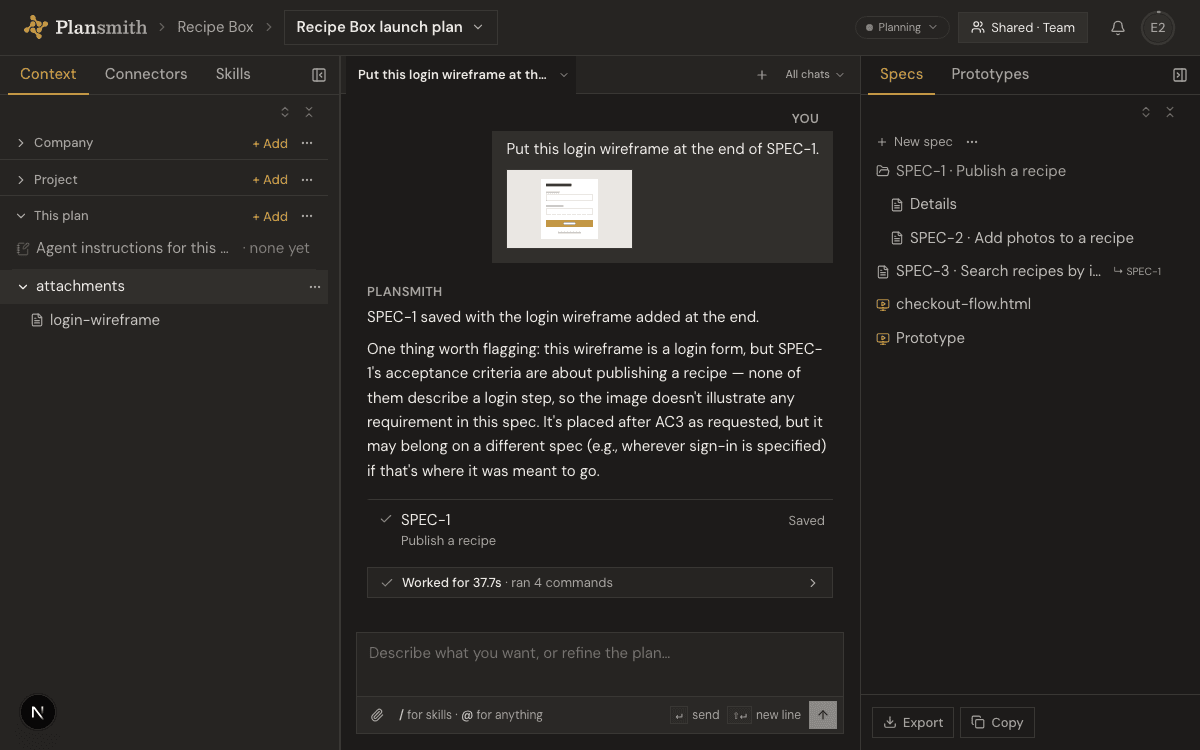
- Three ways in. /Image opens a file picker, and paste or drag-and-drop from your desktop work the same way. A failed upload says why and leaves your document as it was.
- Move anything visual. Drag an image, canvas or diagram by its handle to any spot in the document.
- Copy, download, delete. The ⋯ menu or a right-click copies the picture itself, downloads it, or removes it.
- Drop it in the chat. Paste or drop a screenshot or file into the conversation. It’s saved to your plan’s context under attachments, and you can ask the agent to put it in a spec.
- Your agent and your tools too. The planning agent can add an image from your context or the web, and the API, CLI and MCP server can attach one to a spec.
Improvement
Older Word files keep their headings, tables and pictures.
A .doc in Context now reads like a .docx: headings, lists, tables, bold and italic, links, and pictures described where they can be. For a .doc already in Context, choose Re-extract from the original in its file menu.
Improvement
Add XML files, schemas and stylesheets to Context.
Drop an .xml export, its .xsd schema or an .xsl stylesheet into any Context tree. Plansmith reads each file in its own encoding, highlights it in the drawer, lays out one-line exports, and keeps your original to download.
Improvement
The planning agent searches your whole repository.
Code search now covers every file in a linked repository, with full regular expressions, and a search returns in milliseconds. It works the same on GitHub, GitLab and Bitbucket, and through the private-network connector.
Feature
GPT-6 is in Plansmith: Astra, Sol and Luna
Pick GPT-6 Astra, OpenAI’s most capable model, for your hardest plans. And wherever you chose Sol or Luna, it now runs GPT-6, at a lower rate.
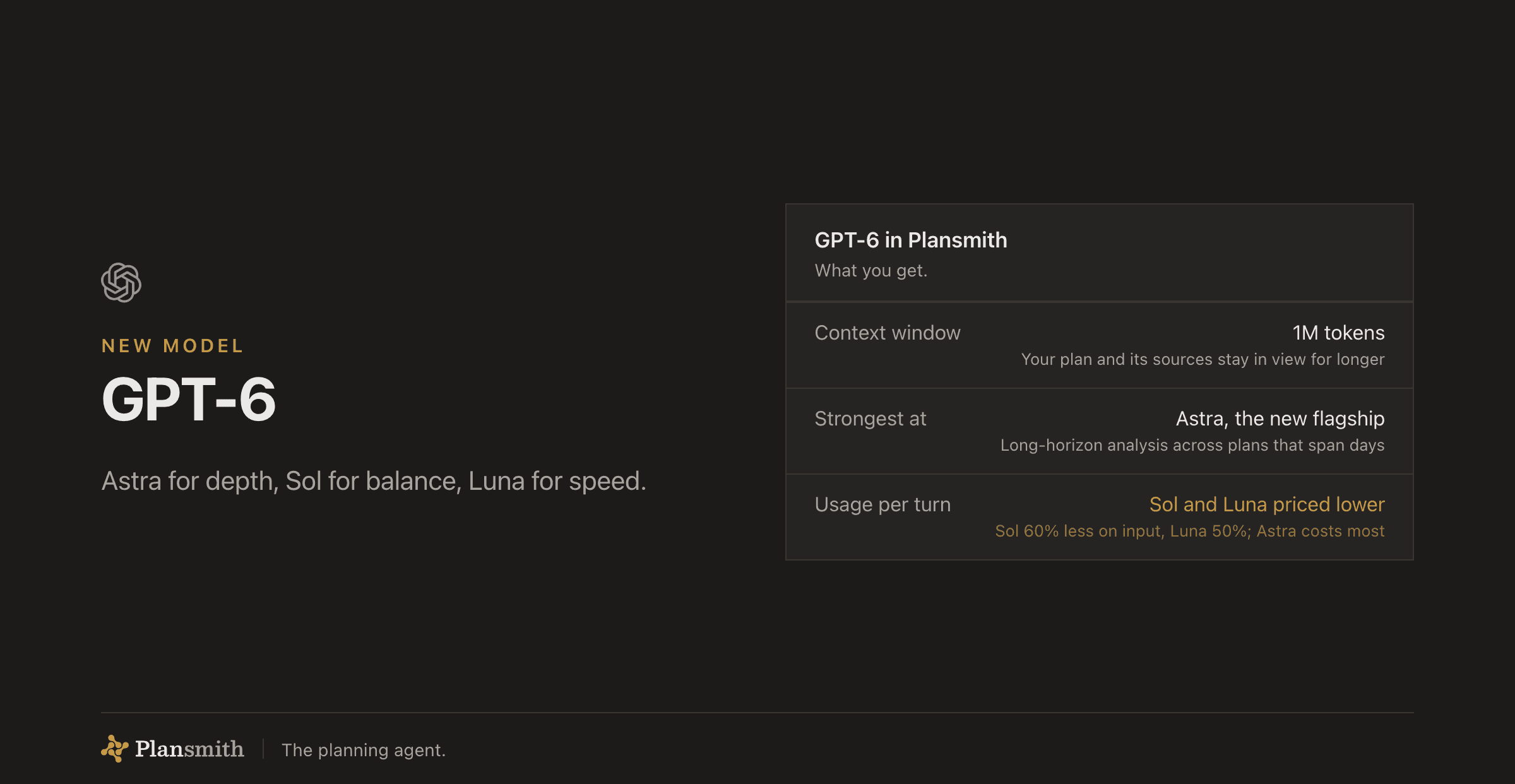
- GPT-6 Astra, new in Settings → Models. Choose it for your planning conversation, delegated work, or any of the three reviewer models. It has the highest rate of any model in the picker.
- Sol moves to GPT-6, at a lower rate. It costs 60% less for input and 67% less for output than the version it replaces.
- Luna moves to GPT-6 for delegated work and for summaries of your sources and images. It costs 50% less for input and about 58% less for output. When a long conversation is condensed to make room, that summary still runs on the previous Luna: in our tests it kept more of the decisions the conversation had made.
- Nothing to switch. A workspace already set to Sol or Luna moves across on its own. Your saved choice keeps working, and the picker reads GPT-6 next time you open it.
Feature
Opus 5.5, Anthropic’s newest model, is now in Plansmith
Wherever you chose Opus, it now runs Opus 5.5, whether that is your planning conversation, delegated work, summaries, or any of the three reviewer models. It is priced about 20% lower than the model it replaces on input and output tokens, and its cache reads cost 60% less.
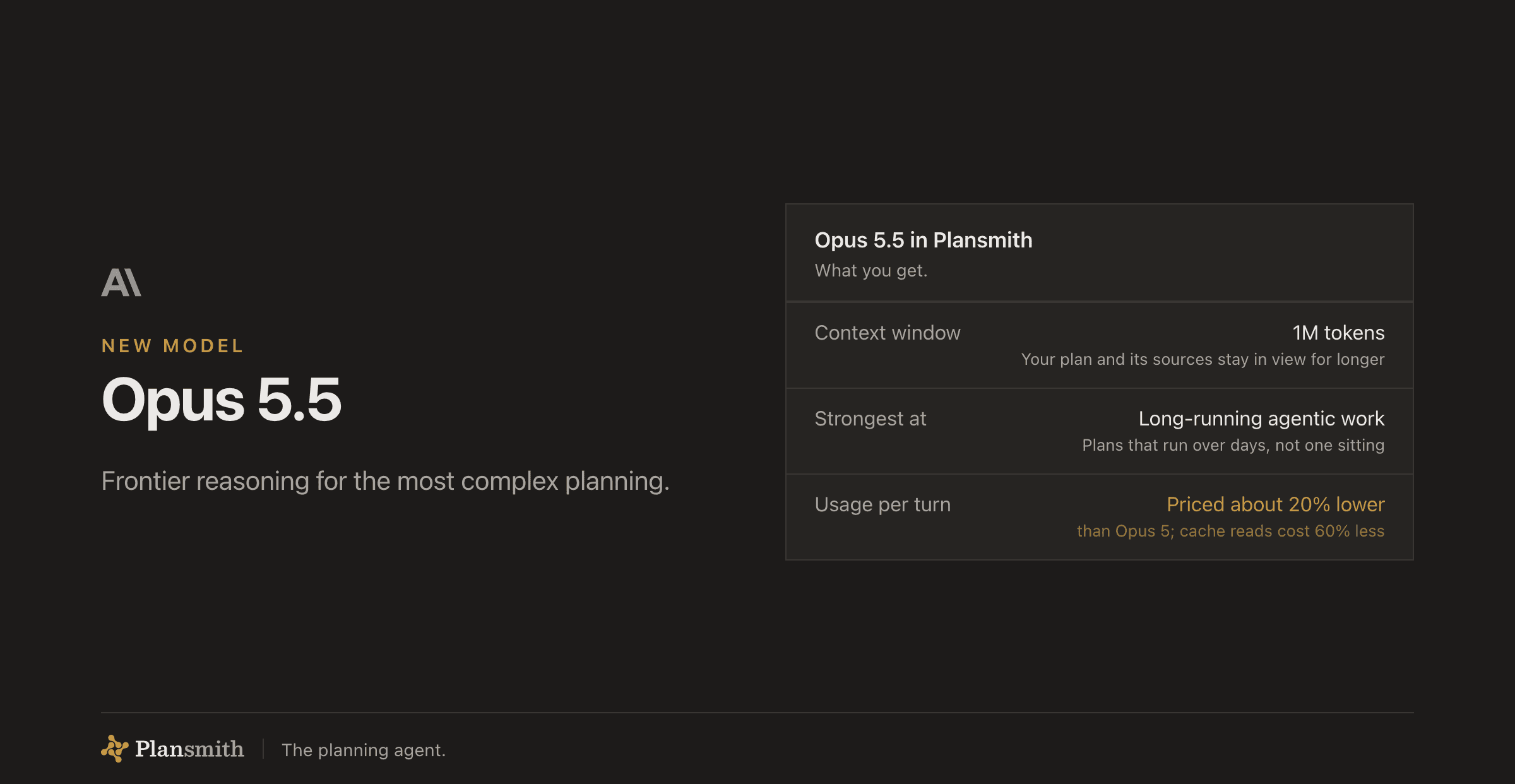
- Newest Anthropic model, in every slot. Pick Opus 5.5 for your planning conversation, for delegated background work, for fast summaries, or for any of the three reviewer models that check a spec. It sits alongside OpenAI, Google and xAI in Settings → Models.
- Priced about 20% lower. Opus 5.5 costs 20% less per million input and output tokens than the version it replaces, and 60% less to read from cache. Rates follow the model you choose, as they always have.
- Nothing to switch. A workspace already set to Opus moves across on its own. Your saved choice keeps working, and the picker simply reads Opus 5.5 next time you open it.
Improvement
Prototypes can cross apps.
A flow that starts in one of your apps and finishes in another now builds as one prototype. Each screen matches the app it belongs to and names it above the frame, so reviewers can see where the flow crosses over.
Fix
Code search works around built files in a repository.
When a linked repository keeps built output, such as a Storybook build, the planning agent searches your source code instead of failing, and a spec says when it could not check part of the code.
Feature
Grok 4.7, xAI’s newest model, is now in Plansmith
Grok 4.7 replaces Grok 4.5 across every model slot: your planning conversation, delegated work, summaries, and the three reviewer models. It is priced about 20% lower than the model it replaces.
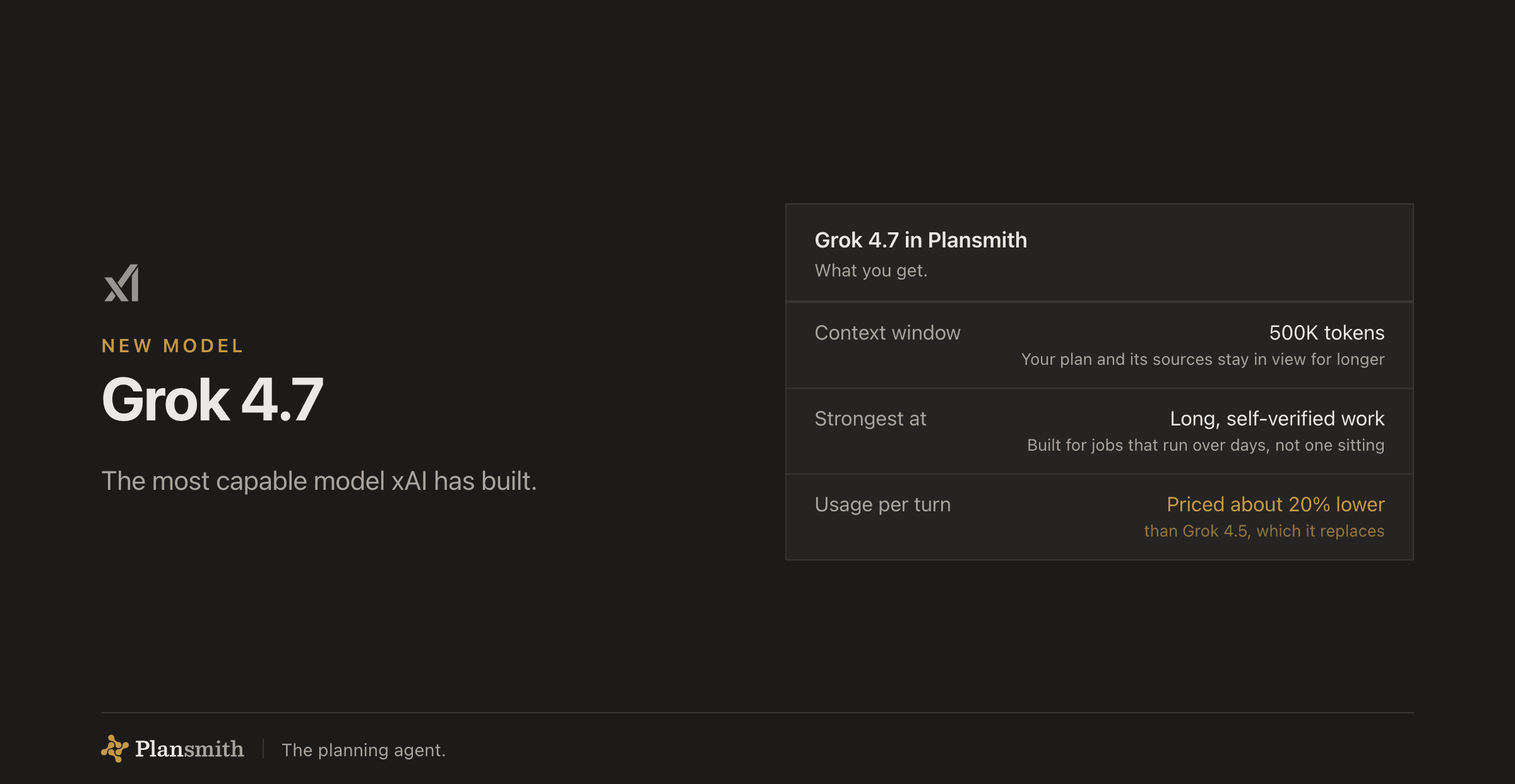
- Newest xAI model, in every slot. Pick Grok 4.7 for your planning conversation, for delegated background work, for fast summaries, or for any of the three reviewer models that check a spec. It sits alongside Anthropic, OpenAI and Google in Settings → Models.
- Priced about 20% lower. Grok 4.7 costs less per million tokens than the version it replaces, so the same conversation draws less of your monthly usage. Rates follow the model you choose, as they always have.
- Nothing to switch. A workspace already set to Grok moves across on its own. Your saved choice keeps working, and the picker simply reads Grok 4.7 next time you open it.
Improvement
Longer choice cards are a list you confirm once.
Four to six options from the planning agent now stack as rows: pick one, see it highlighted, press Continue. Prefer your own words? "Write my own answer" puts the cursor in the composer.
Feature
A second reader looks before a spec can be Ready.
A spec that claims Ready gets a second pair of eyes, and you can see what still needs resolving before you hand a plan to your tracker.
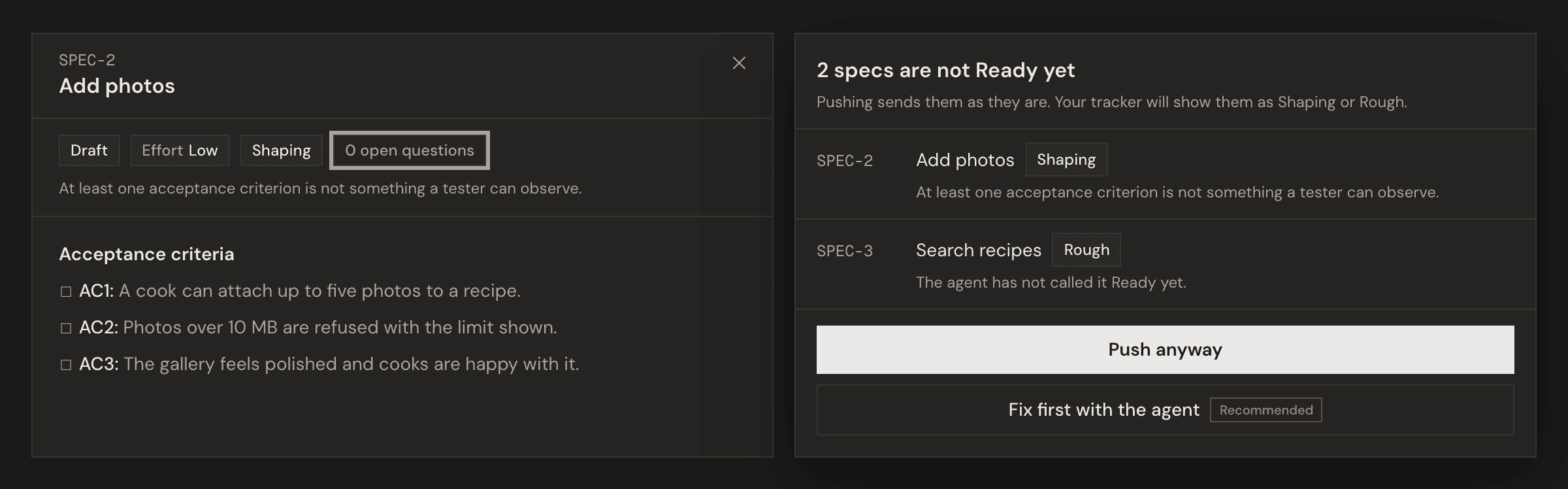
- Cheap defects get caught earlier. An acceptance criterion a tester cannot observe, a "TBD" or an unconfirmed assumption, or a behaviour with no criterion now keeps the spec at Shaping, with the reason written on it. The agent fixes it in the same turn.
- The reason is on the spec. Under the Rough, Shaping or Ready label you see why a spec is not Ready yet, whether the format, the checklist, or the second reader held it.
- See what is left before you push. Pushing shows the specs still below Ready and why. Push anyway or fix first; nothing is blocked.
- It reads your language. We measured it on English and Spanish specs, and a sentence inside a spec asserting that it is complete is almost never enough to move the answer.
Improvement
Change what a spec needs first, in conversation.
Ask the planning agent to add, remove or re-point a “needs first” link on a spec you already have, or edit it yourself in the spec drawer. Nothing has to be recreated to record the dependency.
Improvement
Answer a review question and the review updates itself.
Answer an open question or apply a finding, from the chat, the spec, the API or the CLI, and the review file and the spec’s readiness update the moment the spec saves, in your language. Older reviews update by hand once, then on their own.
Fix
Prototypes label unplaced screens in your language.
When the planning agent cannot confirm where a screen lives in your app, it now marks that screen with an unconfirmed-route label written in the language you are working in, instead of always writing it in Spanish.
Improvement
See the file you uploaded.
A document you add to Context now shows the original file beside its text: its name, its type and its size, with one click to download exactly what you uploaded. PDFs open right in the drawer, page by page.
Fix
The working timer stops when the agent does.
If the live connection dropped as a chat finished, the timer and the moving mark could keep running on a turn that was already over. A chat closed mid-answer could do the same. Both now stop when the turn ends.
Improvement
Diagrams and wireframes land where the agent draws them.
When the planning agent draws a diagram or a wireframe, it now appears at the point in the reply that introduces it, and the rest of the answer continues underneath. Before, every drawing waited at the end of the reply.
Improvement
Close any chat tab, even while the agent is working.
Closing a chat mid-answer now stops the agent and closes it in one click, from any window, including a reloaded one with no Stop button. A chat waiting on your answer shows a still mark instead of the moving one.
Improvement
Code search waits for GitHub's limit instead of skipping the search.
GitHub limits how often anyone can search code. Plansmith now waits its turn instead of giving up, so a question that needs a lot of searching gets answered. It can take a few minutes longer, and Stop still works.
Improvement
Cards land where the agent meant them.
When the planning agent lays out a comparison, a table or a set of options, the card now appears at the point in its reply that refers to it, and the rest of the answer continues underneath. Before, every card sat at the end.
Improvement
Enterprise plans include monthly usage per planner.
Every planner on an Enterprise plan now gets monthly usage, renewed on your billing date, at the Team amount or whatever your agreement sets. While a payment problem is being sorted out, usage shows as paused rather than used up.
Improvement
Word and PowerPoint files keep their pictures and tables.
Drop a .docx or .pptx into Context and the tables arrive as tables. Every picture stays a picture, with a written description beneath it, so the agent can read a screenshot, a diagram or a mockup where the author put it.
Fix
Specs save even when the format is off.
A spec that misses a section or carries an extra heading now saves and stays below Ready until the agent fixes it in place, instead of being turned away. If a reply does stop part-way, the chat says so in your language and offers Retry.
Improvement
Move usage from the billing page.
Pick a person or the shared pool, choose what share of their remaining usage to move, and see both sides before you commit. The command line takes the same share, and
--percentage replaces the old amount flag.Feature
The Plansmith blog
Longer writing about planning, specs and agents now lives at plansmith.co/blog, starting with "Introducing Plansmith".
- Written for people and agents. Every post is a normal web page and a plain-markdown one, with its date, author and canonical URL on the markdown copy. Ask for
text/markdown, add.mdto the URL, read/blog/<post>/llms.txt, or take the whole corpus at once from/llms-full.txt. - Subscribe without an account.
/blog/feed.xmlis a standard RSS feed and it carries the full post, not a teaser. No email required. - Reads in light or dark. The same toggle as the docs, and it remembers your choice.
Feature
Comments and suggested edits, on every document
Discuss a passage, propose a change, and bring the right teammate into the conversation without leaving the document.
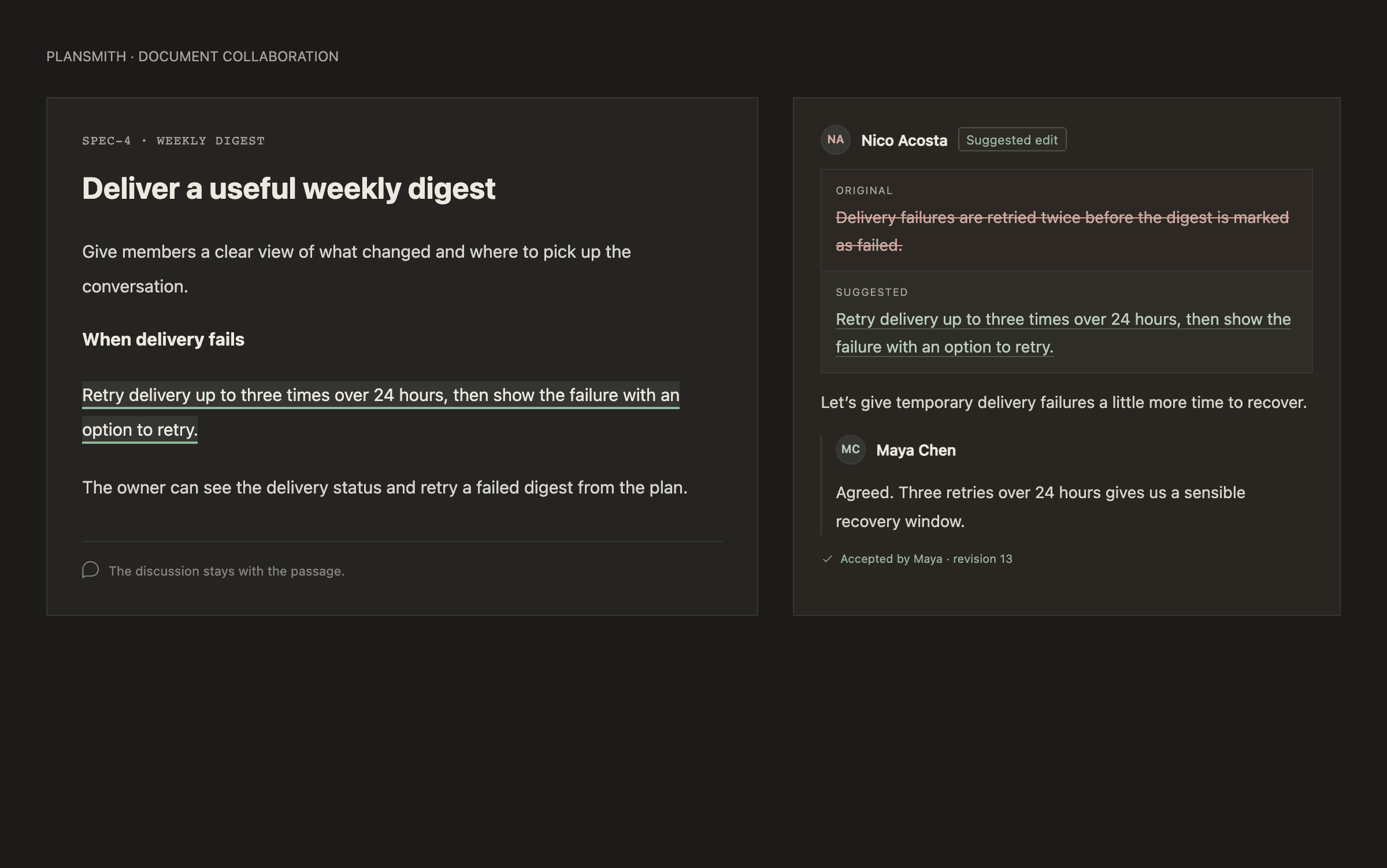
- Threads. Select a passage and start a discussion beside it. Replies, edits and decisions stay with the passage, and every thread has a link you can send.
- Suggested edits. Propose replacement text and see it beside the current version. Whoever maintains the document accepts or turns it down, and a proposal written against text that has since changed asks to be refreshed first.
- Mentions and your Inbox. Name a teammate who can read the document and they hear about it. Plan discussions reach the plan owner, formats reach workspace owners, and everything lands in your Inbox and, if you want, your email.
- Everywhere you work. Read and write discussions through the app, the API, the CLI and MCP, with the same permissions on every surface.
Feature
Your team's skills can now extend ours
A skill you write can say which built-in skill it extends, and Plansmith makes sure both arrive together: your rules and ours, on the turn that matters.
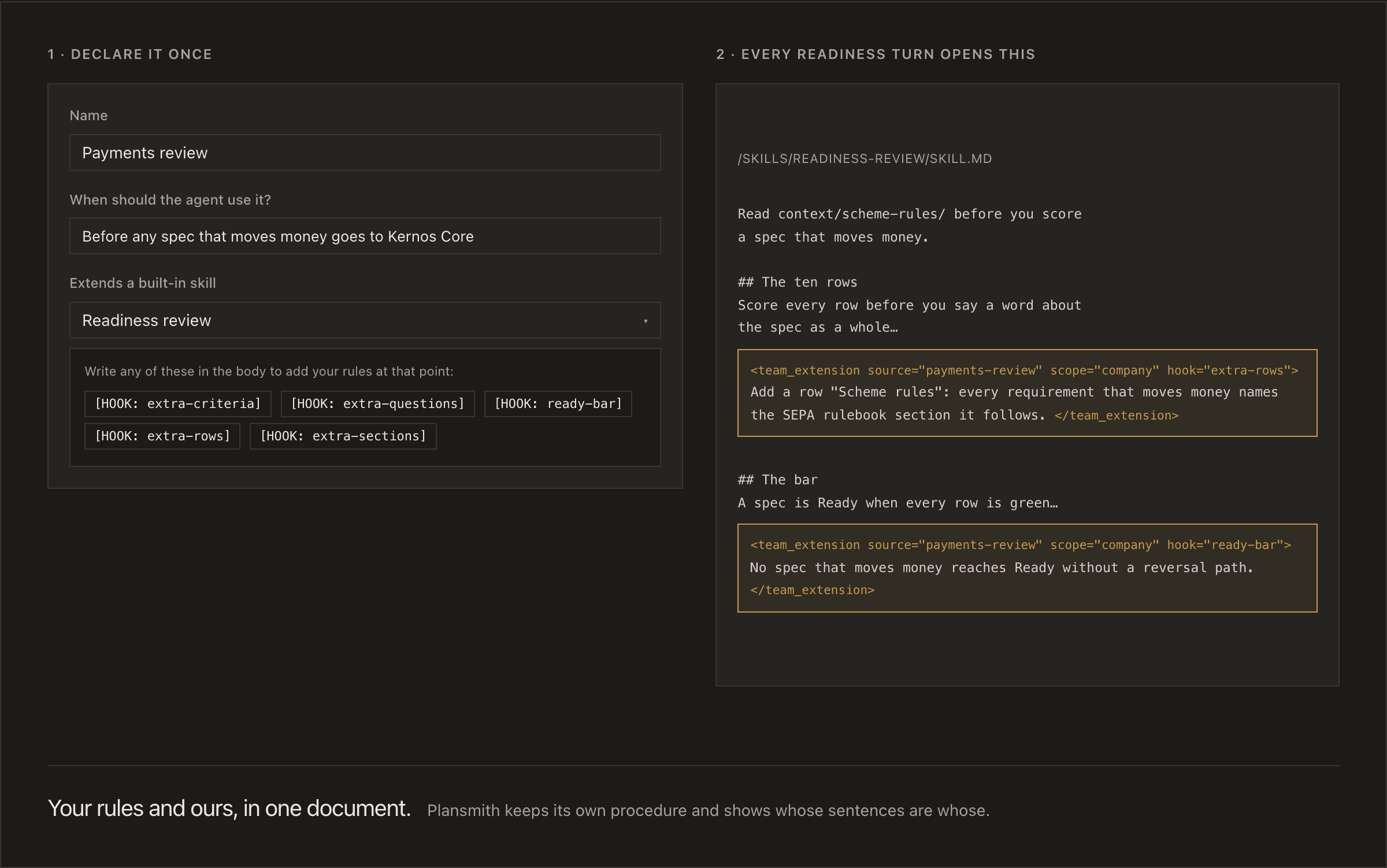
- Say what you extend. Pick a built-in skill when you write yours, and Plansmith checks that the extension points you use belong to it. No more guessing whether an extension attached.
- Four skills, not two. Readiness review and Prototype builder were already extendable. Spec writer and Epic writer join them, so your team’s questions, sources and bars reach the documents the agent writes for you.
- Ours stays ours. An extension adds to a built-in skill and raises its bar. It cannot lower one or remove a step, and the agent will tell you when an extension asks it to.
Fix
Plans and prototypes follow your sources.
Existing behavior is checked against the relevant code and documents. Proposed changes and unanswered decisions stay clear, including in prototype navigation.
Fix
Planning pauses when usage runs out
Planning pauses when there is not enough usage for the next step. Completed work stays saved, and you can continue when usage is available. Shared team usage now appears in the usage warning.
Improvement
Move usage from one person to another.
A workspace owner can move usage between people, or to and from the shared pool, from the command line and the API. You see both sides of the move before you commit it.
Improvement
Your team's spec format is checked in full.
A workspace with its own spec format now has every rule checked at once: required sections, the full list for the kind of spec it is, and no headings the format never mentions. One message names everything to fix.
Fix
The buttons on a chat card work again.
When the agent answered with a card, Expand and Add to Spec did nothing when clicked. Both work again.
Fix
The message box stays on screen under a banner.
When a usage banner appeared above the plan, the conversation grew past the bottom of the window and Send was out of reach. The composer now stays where you can click it.
Fix
A share link to a very large prototype says so.
A working link to a prototype too large to preview told the recipient the link was no longer available. It now says the prototype is too large and names its size. In a shared set, the other pages still open.
Improvement
Bigger prototypes now preview.
A prototype up to 4.2 MB now previews, nearly three times the old limit. The agent used to be told to trim screens that would have shown fine. Past that you still get a clear message with the size.
Improvement
Plans with a big prototype open as fast as plans without one.
Opening a plan used to download its whole prototype, even if you never looked at it. The prototype now loads when you open the Preview. Comment alerts on the Prototype tab still work before you open it.
Feature
Recordings go into Context
Drop a customer call, a Loom walkthrough or a demo (.mp4, .mov or .webm, up to 2 GB and 2 hours) into any Context tree. Plansmith writes a transcript with timestamps and speaker labels, and the agent plans from it like any document.
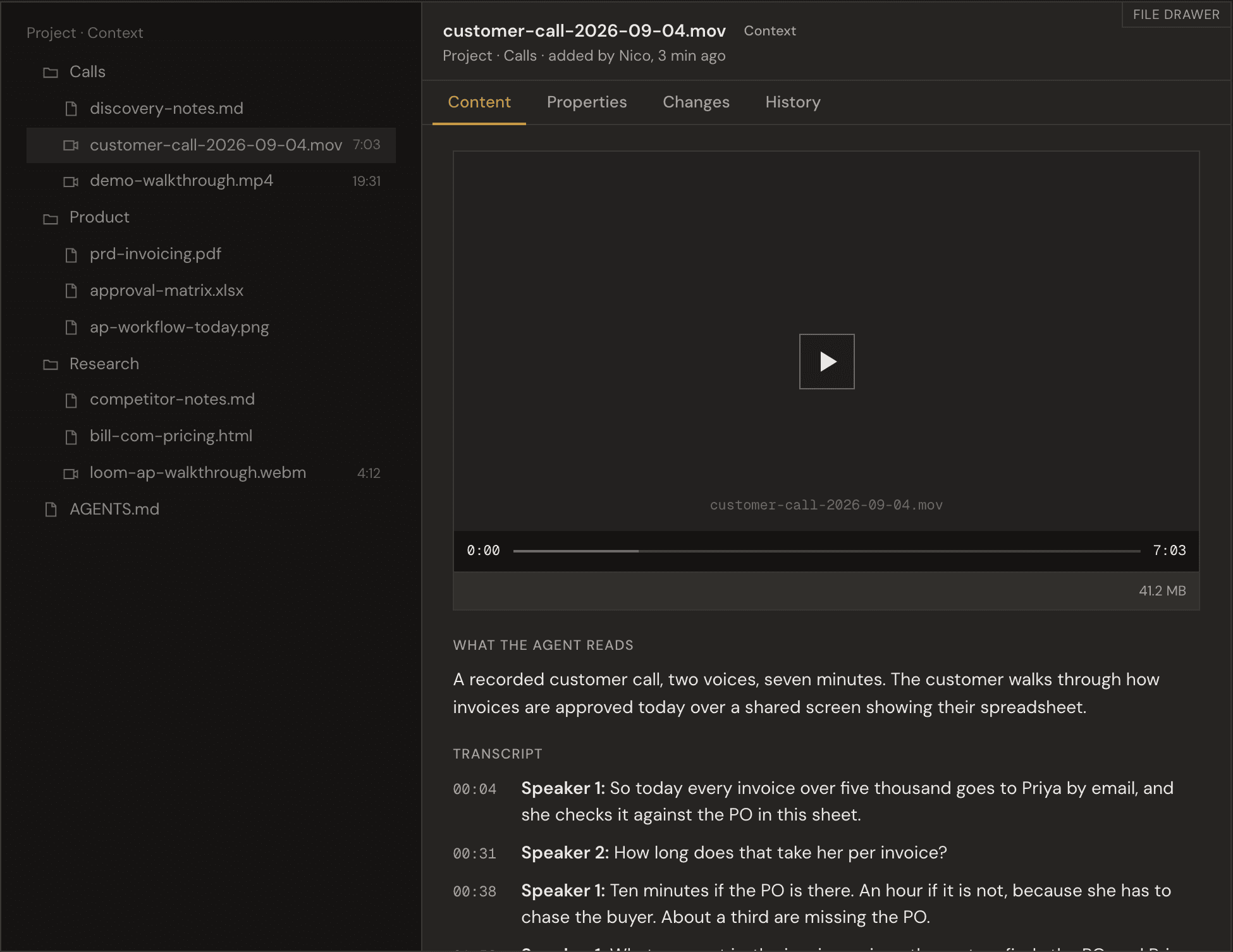
- Play it where you read it. Open the source and the recording plays above its transcript. Click a timestamp to jump straight to that moment.
- See when it is ready. The file lands straight away and reads “Transcribing…” until the transcript arrives, usually within a minute or two. If it cannot run, the recording stays and you can try again.
- From the command line too.
plansmith context add call.mp4uploads a recording, and the old 4 MB limit is gone for every format: large files now upload straight to storage. - Billed as usage. Each transcription shows on your usage as its own line, priced by the length of the recording.
Fix
Chat notices follow your language.
When you comment on a document or point at a prototype element, empty-response notices now use your own instructions to choose their language. The notice remains visible when you reload the chat.
Improvement
Older Word documents can go into Context
Drop a .doc into any Context tree and Plansmith reads it, including its tables, footnotes, endnotes and text boxes. Older .xls and .ppt files still aren't readable; Plansmith says which format to save them as.
Fix
Your plan's agent instructions open again.
In the Context panel, "Agent instructions for this plan" did nothing when clicked. It now opens the document, blank the first time, and the open document has its own link you can share or reload.
Fix
Epic corrections save across your plan.
Corrections now reach the epic and affected specs. Format errors name all missing requirements together, and each document shows whether its changes saved.
Improvement
Read and share your team's formats.
Read and share spec and epic formats as documents. Owners maintain company and project formats through the app, API, CLI or MCP. Project edits previously allowed members; they now require an owner on every surface.
Improvement
Excel, PowerPoint and CSV files can now go into Context
Drop an .xlsx, .pptx or .csv into any Context tree and Plansmith reads it properly: one table per sheet with headers intact, decks slide by slide including speaker notes. Older .xls and .ppt now say which format to save as.
Fix
Large Spec edits save reliably.
Restructuring a large Spec no longer triggers repeated shortening attempts, and save feedback clearly shows which Specs were saved.
Fix
Large prototypes render again.
A large prototype opened with its title and flows but no screen: only the first part reached the viewer. Prototypes now load whole up to the preview limit, with a clear "too large" message past it. Editing one keeps that turn’s other files.
Feature
Sharing now says which plan it changes
Sharing lives on the top-level plan and covers every sub-plan under it. Now the app says so plainly, everywhere it can be changed.
- Share on a sub-plan takes you to the plan that controls it. You get one sentence and a button to the plan above, instead of live controls that quietly changed the whole tree.
- A top-level plan names its reach first. The dialog says how many active sub-plans the settings cover before you touch anything.
- The command line asks before it changes a sub-plan.
plansmith shareprints which plan a change lands on before making it, and in a script a sub-plan needs--yes. Every share command now supports--json. - Agents can read and manage who a plan is shared with. Four new MCP tools read a plan’s sharing, set it to private or team, and add or remove people. Public prototype links stay in the app and the CLI. A read-only credential still cannot change anything.
Fix
Reliable broker and instance removal.
Removing an unused broker no longer incorrectly reports that it has already run. If a self-hosted instance changes during removal, you get a clear message to try again.
Feature
Prototypes on a template you control
Every new prototype sits in one Plansmith template: the flow index, the step strip, the notes and the screen frames look the same on every plan, and a company or a project can replace the template with its own, from Settings, the API, the CLI or MCP. A saved prototype keeps the template it was built with until it is rebuilt.
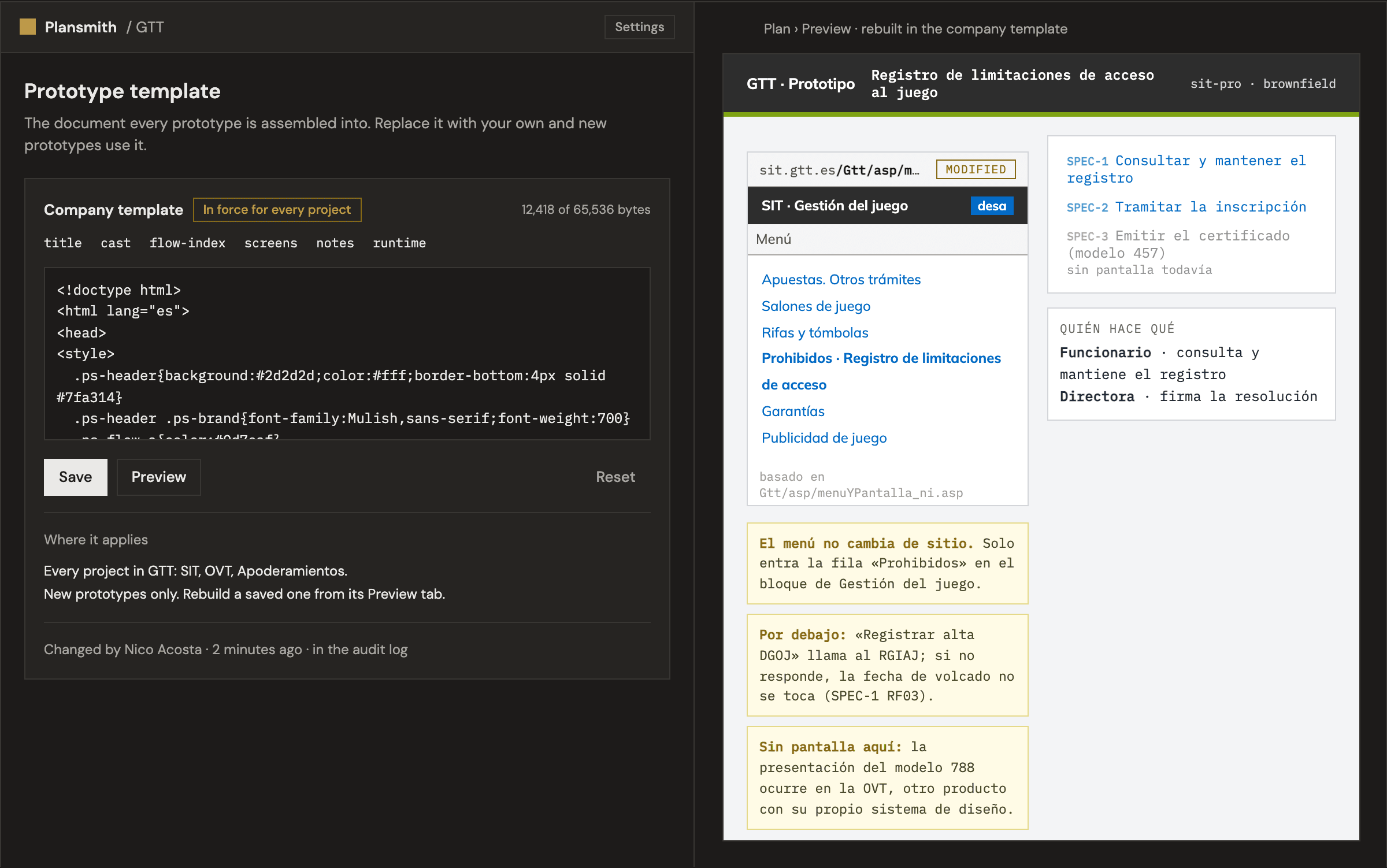
- Your chrome, not ours. Upload a template with your typography, colours and header; the agent’s screens and notes drop into your frame. Nearest wins: a project template beats the company template, which beats ours.
- Big prototypes save first time. A prototype with many screens used to fail at the moment it was saved, after minutes of work. It now saves from the files the agent already wrote, screen by screen, in seconds.
- Change one screen, not the whole thing. A revision rewrites one screen file and re-assembles; comments left on other screens stay where they were. “Rebuild with current template” on the Preview tab re-renders an existing prototype in whatever template is in force now.
Feature
The agent answers with cards, not just paragraphs
When a reply is a comparison, a set of options, a table, a few numbers or a sequence of steps, the agent now lays it out as an interactive card in the conversation. It appears as it is being written, and it is still there after a reload.
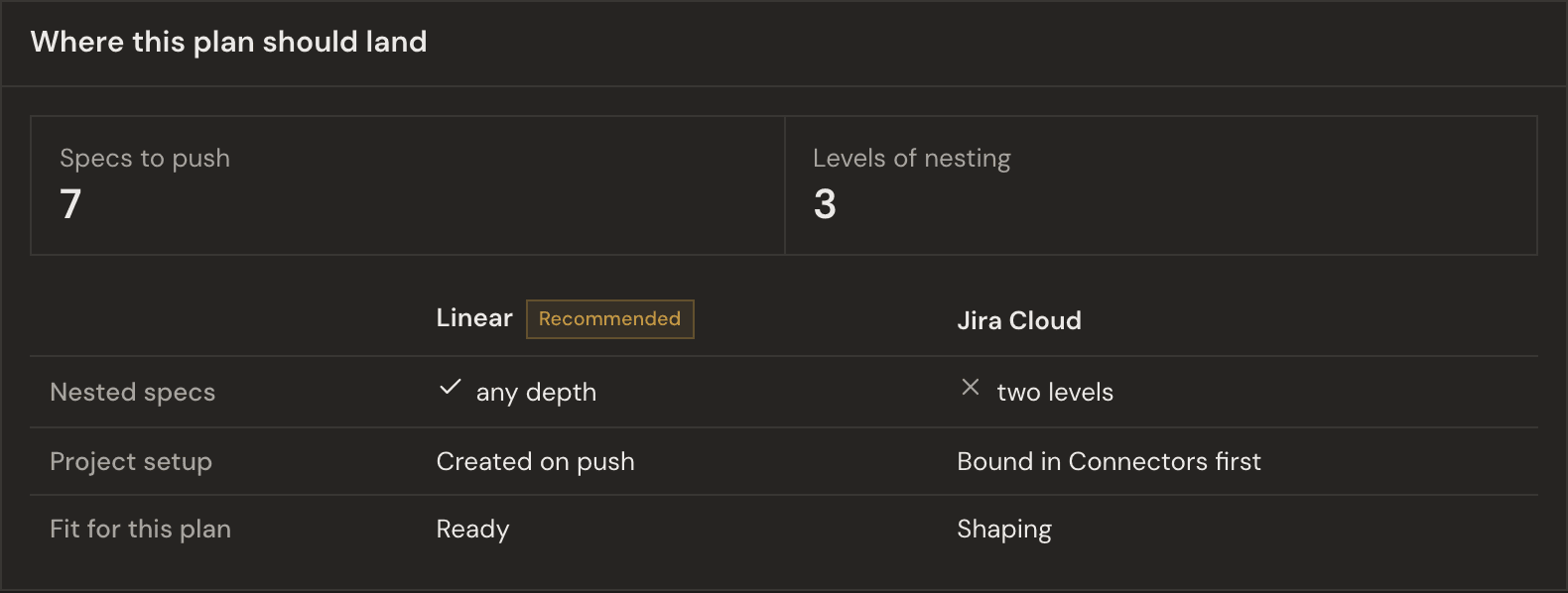
- Compare options side by side. Ask "Linear or Jira for this plan?" and get a comparison table with a recommended column, not three paragraphs.
- Pick with a click. An option set has a button per choice. Clicking one sends your pick as the next message, so the conversation moves on without retyping.
- Tables, metrics and timelines. Facts with three or more rows, key numbers, and step sequences render as real tables, metric rows and timelines.
- Small forms that survive a reload. When the agent needs three short answers, it can show a form. Half-filled values are restored if you leave and come back.
Fix
Plan epics no longer go missing
A plan's epic could be saved where the app could not show it, and the agent would then deny writing it. Epics now always land in the plan itself, and any stranded epic has been recovered into its plan.
Fix
The planning agent no longer denies work it just completed
In a follow-up turn the agent could lose the record of the files it wrote and the tools it ran, and then tell you it had done nothing. It now carries that record forward, so it answers from what actually happened.
Fix
Copied plans keep their images
Copying a plan used to leave its imported images behind, so the new plan showed empty placeholders where screenshots and wireframes had been. The copy now brings the images with it, and they show up in the copied documents.
Improvement
See who owns every plan in the list
Plan lists on the dashboard and inside a project now name the person who owns each plan, right under its name. That line used to say a plan had not been pushed to your tracker, which was rarely what you were looking for.
Feature
Agent-drawn diagrams and wireframes
Ask for a flow or a screen and the planning agent draws it into the conversation: an editable canvas, not a picture. Move a box, retype a label, then add the drawing into a Spec, where it sits wherever you put it and travels to your issue tracker as a link anyone on your team can open.
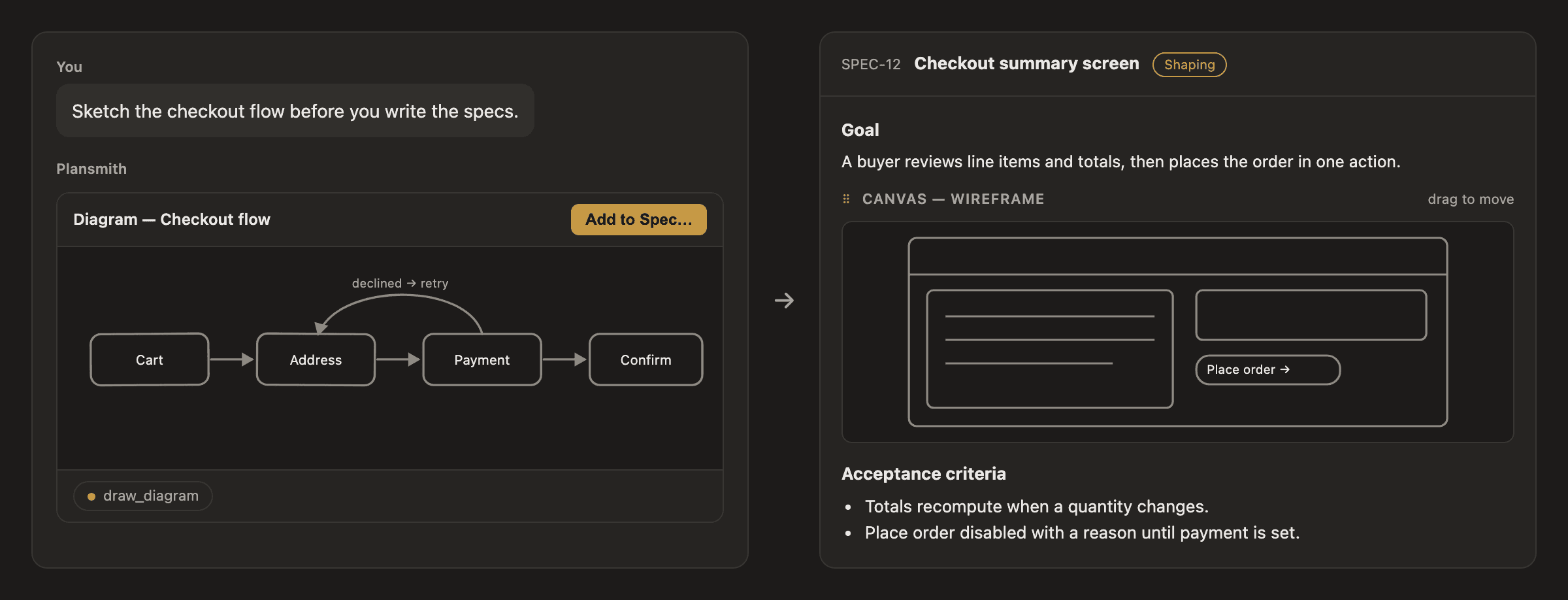
- Diagrams you can rearrange. Ask the agent to sketch a flow and you get boxes and arrows you can drag. The arrows follow the boxes, so correcting the shape of the work takes a moment rather than a re-draw.
- Wireframes from what a Spec already says. Ask for a wireframe of a screen a Spec describes and the agent draws its structure: the regions, what sits in them, what the reader can press. Free to make and free to throw away.
- A drawing goes in a Spec, not on top of one. Add to Spec drops the canvas into that Spec’s document as an ordinary block. Drag it above the acceptance criteria or below the goal, delete it like any other block, and add as many as the Spec needs. Push the plan and each one travels to your issue tracker as a link, in the place you put it.
- Draw your own with /Canvas. Type /Canvas in a Spec or a context document to insert a blank one and sketch it yourself.
- Low-fidelity on purpose. There is no way to set a colour, a typeface or spacing, for the agent or for you. Sketches stay rough so they stay cheap to change; your prototype is where fidelity lives.
Improvement
Confluence and Jira links import through your Atlassian connection
Paste a link to a Confluence page or Jira issue that needs a sign-in and Plansmith reads it with your own Atlassian connection, once an owner has switched that connector on for the workspace. Until then the message says exactly what to do.
Improvement
Context images land in your specs and your tracker
A spec written over an imported Confluence page now carries that page’s wireframes and screenshots, at the requirement each one illustrates. Pushing sends them along: Linear shows the image in the issue, Jira attaches it.
Fix
Expanding a table or diagram no longer closes the document behind it
Expanding a table or a diagram to full screen used to close the document behind it, both when you pressed Escape and when you used the zoom controls. Escape now closes just the expanded view, and a second Escape closes the document.
Improvement
Find a teammate by typing
Sharing a plan with a big team meant scrolling a list of addresses that ran off the bottom of the screen. The people picker now has a search box: type any part of an address and the list narrows. Long menus elsewhere scroll properly too.
Fix
Confluence imports no longer report as missing
Fixed an issue where the planning agent could not read a Confluence page in the same turn it imported it. Imports landed correctly, but the agent could report them as missing and import them again.
Feature
Upload a document, and see it
Export a page from Confluence, Notion or Google Docs and drop the
.html straight into Context, or drop an .svg diagram out of Figma or Excalidraw. The agent reads them as clean text, with your headings, tables and diagram labels intact. Open one in the drawer and it renders the way it looks, above the text the agent reads.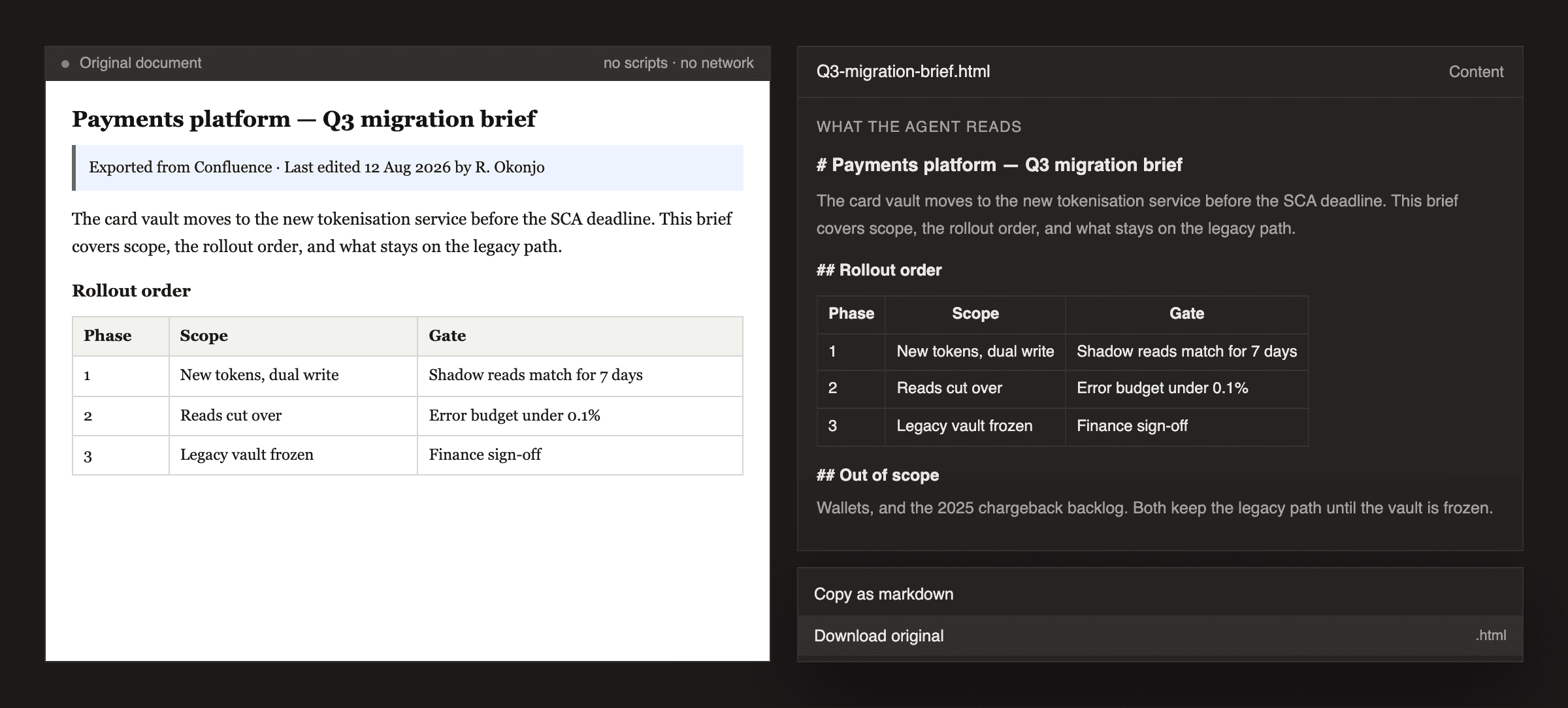
- Your export lands as a document, not as tags. Headings stay headings, lists stay lists, and a table stays a table the agent can read a row out of. Before this, an exported page had to be pasted in as text and arrived as a wall of markup.
- A diagram brings its words with it. An SVG's title, description and every label on the canvas reach the agent, so the picture on your screen and the text it plans from are the same thing.
- The original is one click away. Download original gives you back the file you uploaded, not our reading of it.
- Displayed, never executed. A document renders with no script running and nothing loading from the network, so a file from outside your team is safe to open. An SVG is still not accepted as a chat attachment, where there is no such isolation.
Feature
Open questions are now part of the plan
When planning hits a question only you can answer, save it as an open question and keep moving. Specs and epics carry an Open Questions section with a live count, one-click answers from the document, and a log of who answered what and when.
- Save a question instead of answering it. When the agent asks something you cannot answer yet, file it on the spec and carry on. Answer the ones you know, save the rest, and keep chatting: nothing waits on a question you have not settled.
- Answer from the document. Every open question carries its own control: answer it in the conversation, ask the agent to explain it, mark it answered, mark it as not applicable, or delete one that was noise. A spec with questions open holds at Shaping until they are settled.
- A decision log, not a memory. An answered question moves to the spec's Decision Log with who answered it, when, and what they said, and it travels with the spec when you push to your tracker. Point the agent at a context file instead of typing the answer and it reads that document and records where the answer came from.
- Tag whoever should answer. Mention a teammate on a question and they get an email with the question, the spec it belongs to, and a link straight to it. Only people who can already see the plan can be tagged.
- Reviews add to the same list. A readiness review no longer keeps its questions in its own file. Everything it wants you to decide lands in the spec, numbered so a handle means the same thing months later.
Feature
Undo an instructions change, from anywhere
Your instructions steer every planning turn, so getting them wrong is expensive, and until now the only way back was a copy you happened to keep. Every version is now yours to read and restore.
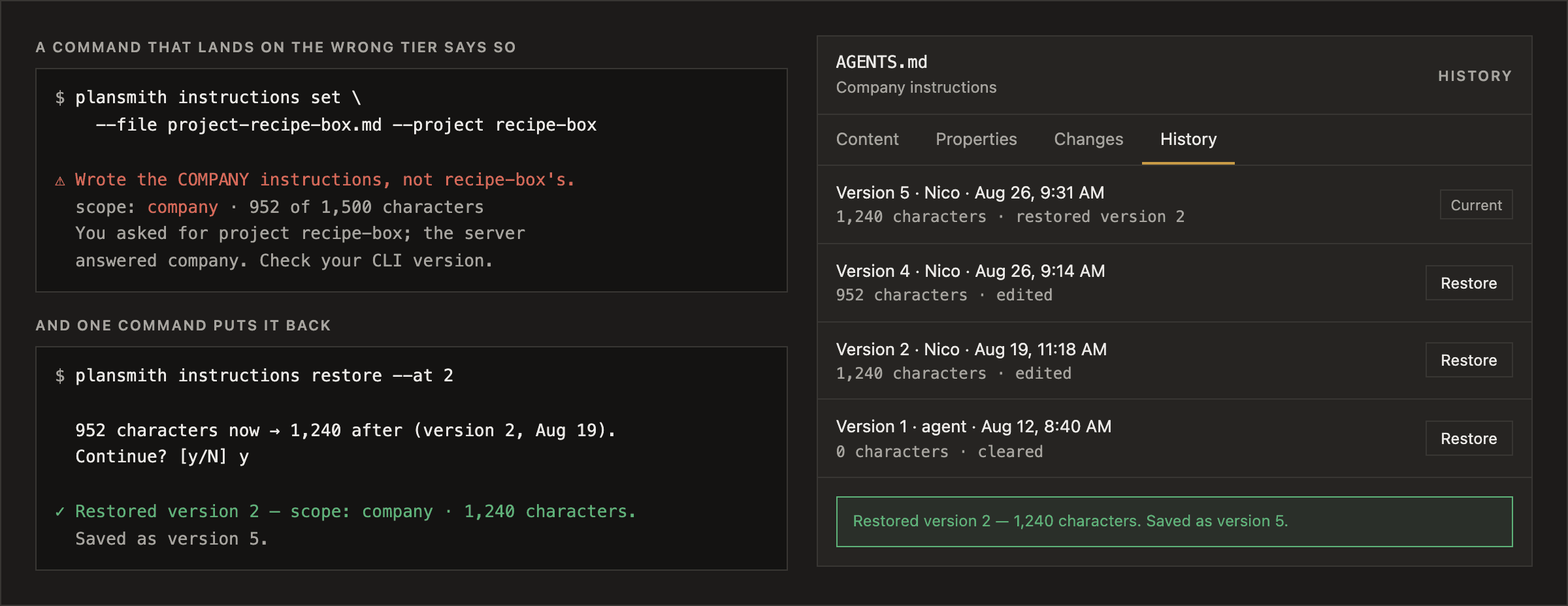
- Every version, everywhere. The version history behind your instructions was already there; now it is reachable from the API, the CLI and the settings screen, not just the History tab.
- One-click restore. Pick a version and put it back. The restore is itself a version, so nothing is ever overwritten out of the record. If someone else edited the document while you were deciding, Plansmith refuses rather than replacing their change.
- The CLI stops guessing. A flag it does not recognise is now refused instead of ignored, and
instructions showtells you which tier the server actually answered with, so a command that targets the wrong scope fails loudly instead of quietly succeeding. - And it tells you when it is out of date. The CLI now reads the current version from the API and says so once a day when yours is behind, so a feature you read about here is never silently missing from your machine.
Improvement
A copy of a plan stays where the plan was
“Create new plan, with same context” used to drop the copy at the top of the project, however deep the plan you copied. Now it lands beside the original, under the same parent, and the dialog says where before you name it.
Feature
Take your context with you
Download a plan's documents, a project's, or your whole workspace's as a single zip with your original files and folders intact. And when a new plan picks up where an old one left off, start it carrying the old plan's documents instead of uploading them again.
- Your files come back as your files. The archive holds the PDF you uploaded, not our reading of it, in the folders you filed it under. Empty folders come too, so the shape you built survives the trip. Archives are capped at 4MB for now, so a big workspace comes down a plan or a project at a time.
- Start the next plan where the last one ended. A plan’s ⋯ menu has a new Create new plan, with same context. Name it, and the new plan opens with every document the old one owned already in place.
- A copy is a copy. Copying a plan's documents keeps every folder, every description, and both documents when two of them share a name. Nothing is re-read and nothing is re-billed, so what lands is what you had.
- Adding a file finally adds the file.
plansmith context add report.pdfnow uploads the document itself, into the folder you name, instead of turning it into unreadable text.
Improvement
Imported and pushed work keeps its tracker name
A spec that came from your tracker, or that you pushed to it, is now called by its tracker key: SIT-123 in the tree, the drawer and your export. Type @SIT-123 to point the agent at it, so the plan and your tracker use one name.
Improvement
Sub-plans arrive with their epic and their own context
When the agent splits work into a sub-plan, that plan arrives written up. It carries its own epic and the sources that made it separate work, so opening it is picking up a plan rather than a blank page. Context shows only its own material.
Fix
API: a plan’s epic no longer reports its parent’s
The plan and epic endpoints, and the get-plan tool on our MCP server, no longer return the parent plan’s epic alongside the plan’s own. If you were reading it, fetch the parent plan instead. Sub-plans now carry an epic of their own.
Improvement
Complete Confluence imports
Confluence imports are now complete and exact. When the planning agent pulls a Confluence page into your plan’s context, the full document lands verbatim: every section, table, image, and attachment. Child pages can come along too.
Improvement
Your documents: links that open, and one-click copy
Click a link inside any document and it opens in a new tab, with your place in it and anything you were typing left as it was. The document header can now copy it as markdown, copy it as plain text, or download it in its own format.
Fix
Plan lists name your tracker, not ours
Plan lists said “Pushed to Linear” whatever tracker you actually use. Every plan now names the tracker you chose, a plan already sent says so once instead of twice, and a project without a tracker says nothing.
Improvement
Aim a drag at a Context folder
Drag a document from your desktop onto any folder in Context and it lands there: the folder you point at highlights and opens while you hover. Folders move too, by drag or from the “Move to…” menu, and everything inside comes with them.
Improvement
Open a diagram full screen
A big diagram no longer has to be read through a small window. Expand it to fill the screen, zoom in on the part you care about, drag to move around, and reset when you want the whole picture back.
Improvement
A cleaner Context sidebar
The Context sidebar opens on the plan you are working in, with Company and Project folded away until you want them, and each section starts with its own agent instructions. Your personal instructions moved to profile settings.
Fix
Long documents finish indexing
The agent could miss passages inside a long document when it searched your Context. Long documents that stopped short now get finished, so the whole document is searchable.
Feature
Your Jira import now brings the whole ticket
Import an epic and you get what the ticket actually says, not just its titles. Plansmith now reads the rich-text fields your team writes requirements in (the "Why / What / For what" boxes many Jira projects use instead of the description), and brings across the links to related work, so the plan starts with the context your team already wrote down.
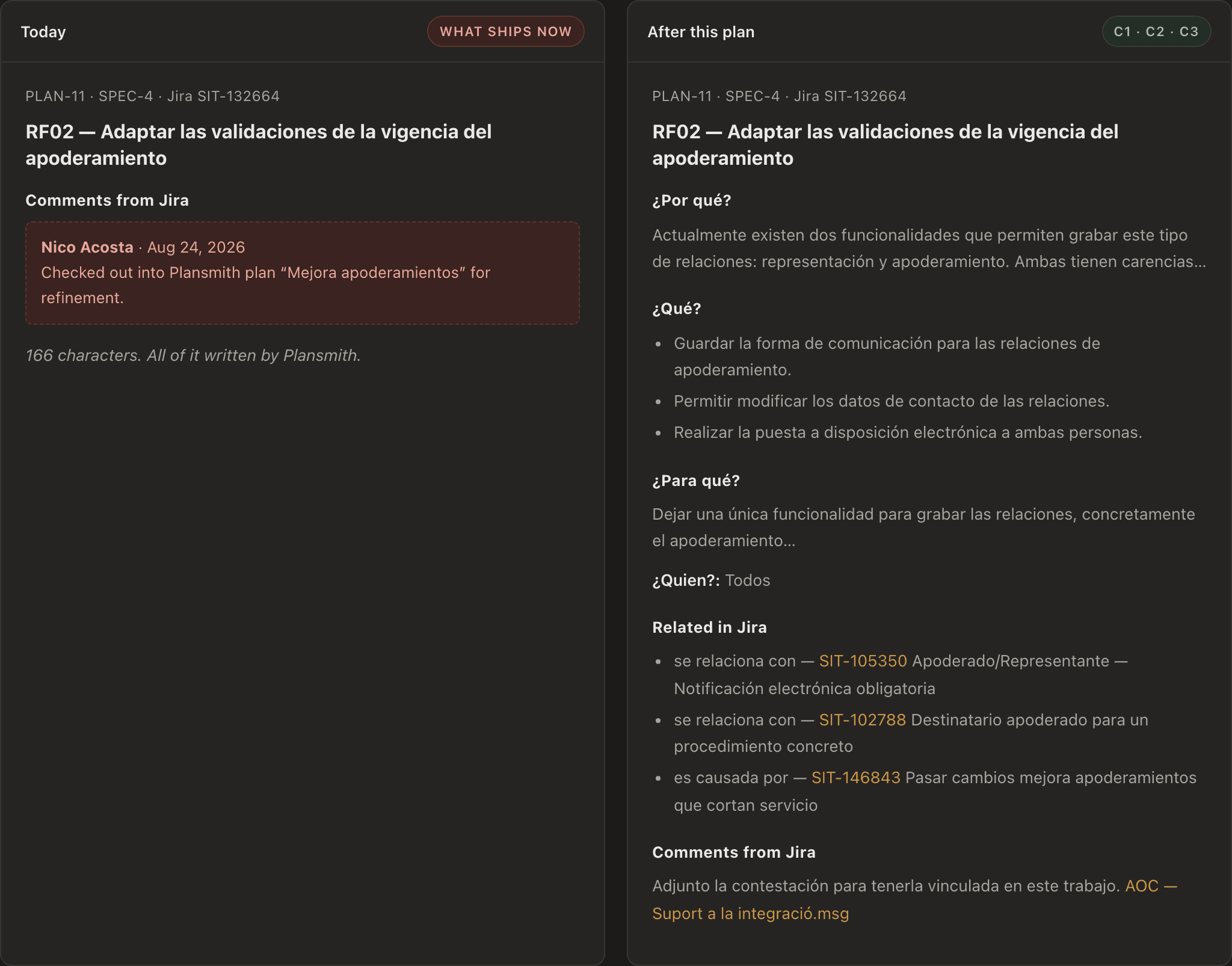
- The fields your team really uses. Plenty of Jira projects keep the story in custom fields and leave the description empty. Plansmith now reads those too, and keeps each one under its own heading with the name your team gave it, in your own language.
- Related tickets come with it. Links to neighbouring work arrive in the spec instead of being dropped, so you can see what else touches the change before you plan it.
- Attachments referenced in the text now open. A screenshot or document mentioned in a description or a comment resolves to the file itself. Documents arrive as links rather than pictures that will not load.
- A quieter footprint in Jira. Checking work out marks the ticket with a label and no longer posts a comment on it.
Fix
Clicking a link in a prototype keeps you in the prototype
Buttons and links inside a prototype used to swap the preview for a sign-in screen, and only a page reload brought the mockup back. Now they stay put, and if a prototype jumps somewhere on its own, Plansmith brings it back.
Feature
The agent works your Confluence
Connect Confluence once and the planning agent can search your spaces, read a page, write a new one, update an existing one and leave a comment, right inside the planning conversation, acting as you. Every write asks you first.
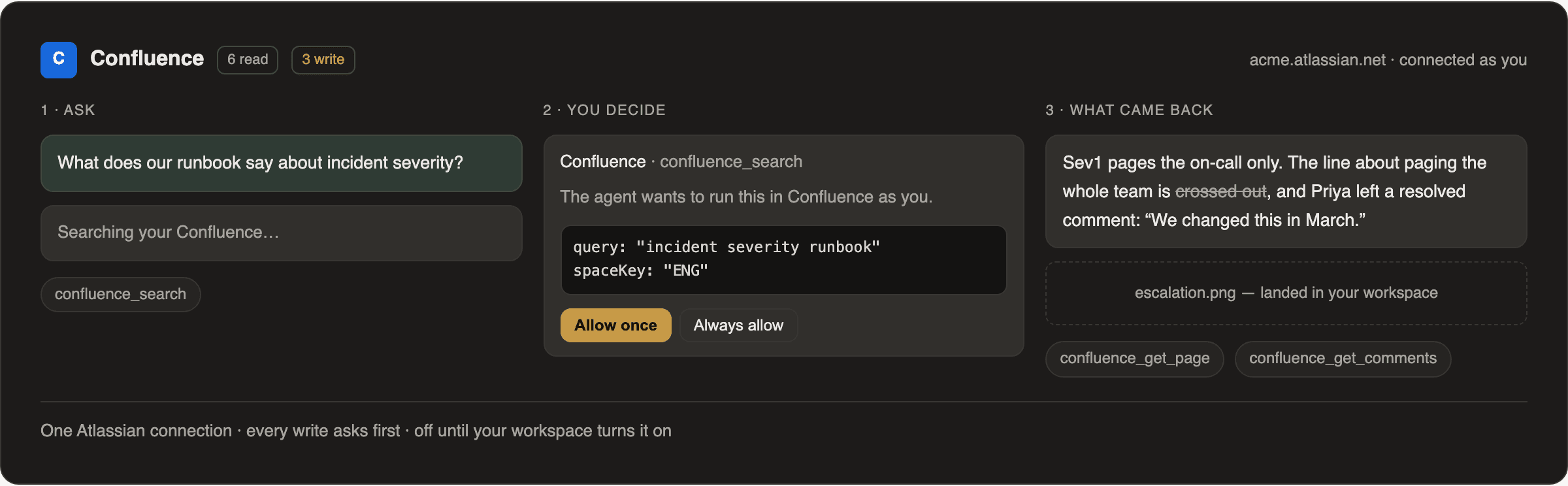
- One approval, not two. Connecting Confluence now takes a single Atlassian approval, through your own account, the same way Jira does. What you can see in Confluence is what the agent can see; what you cannot, it cannot.
- Pages arrive whole. Screenshots and attachments come across as things the agent can actually open, and text somebody crossed out stays crossed out, so a decision that was reversed does not quietly come back to life.
- Off by default, on where you choose. Confluence stays switched off until an owner turns it on for the workspace, and any project can turn it off on its own.
Fix
Diagrams draw while you write them
A mermaid diagram in a spec or a context document used to sit there as raw code. Now it draws in the document, with a Code / Preview switch so you can edit the source and watch the picture change. A typo tells you what went wrong.
Fix
Your half-written answers stay put
Start answering the agent’s questions, switch to another chat or another page, and come back. What you typed is still in the boxes. Answers are kept until you send them, and they survive reloading the page.
Improvement
The agent asks before it writes your epic
Your first sentence used to turn straight into a full epic, for you to approve. Now the agent asks a few questions first and writes the epic from your answers. Skip them and you still get the epic, and it says what it assumed.
Improvement
Plansmith asks before it writes a spec
Every spec now starts with questions. The agent asks what it cannot tell from your plan, then builds the spec on your answers. Skip them and you still get the spec, marked below Ready, with its assumptions called out.
Improvement
Prototypes follow a checked procedure
Every prototype now runs the same pass: match your linked app, build it, then check it against a fixed list before saving. Revisions keep your pinned comments in place, and owners can wrap the builder with their own rules.
Fix
Images from an imported Jira issue now show up
Pictures that came over with a Jira issue now render in the spec instead of a broken image, and the planning agent can read them, so a screenshot in the ticket is something you can actually talk about.
Improvement
Importing a Jira issue brings its comments
An imported issue now arrives with its comment thread, including the screenshots people posted there. Most of what a bug report knows lives in the comments, and it used to be left behind.
Fix
Selecting text in a document is just selecting text again
Highlighting a sentence raises a small Comment button instead of opening the box on top of you, so you can copy or rewrite what you selected as normal. Escape closes the box and leaves the document open, and scrolling keeps what you typed.
Feature
Push back to Jira without overwriting your team
Plansmith now checks what changed in your tracker before it writes. Nothing changed there? The push goes straight through, exactly as before. Somebody edited an issue since you imported it? The push stops and the agent walks you through it, one item at a time.
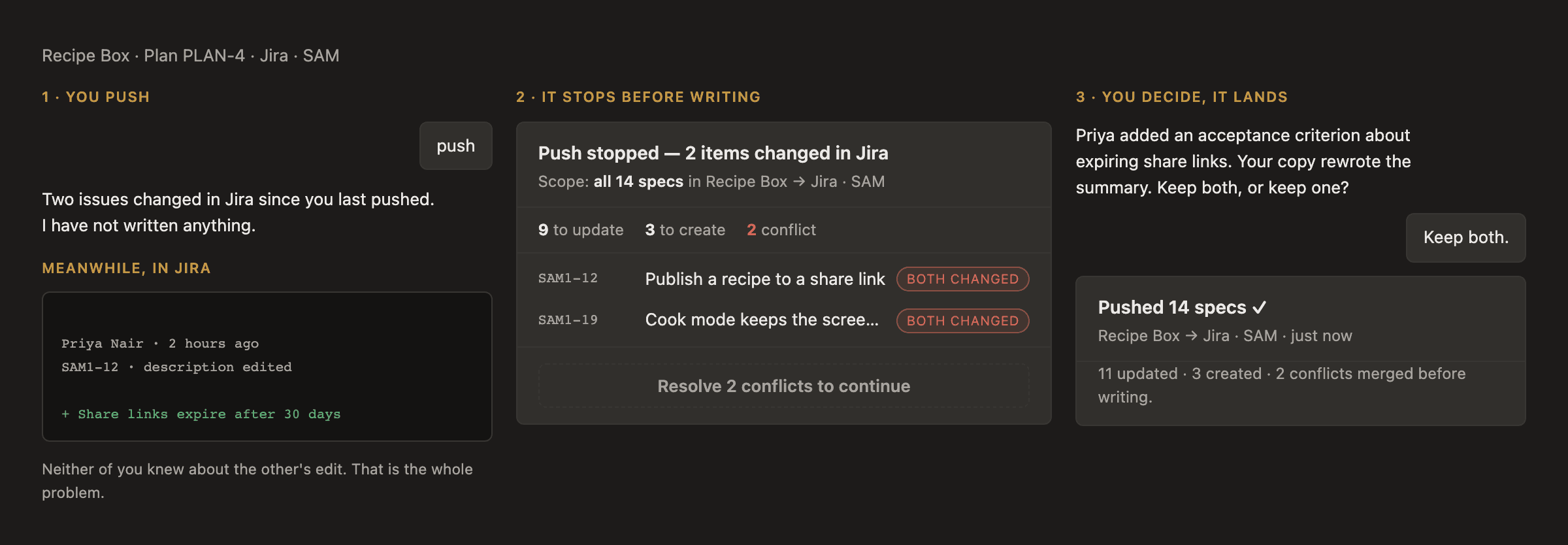
- Fast when it's safe. A push with nothing to resolve does one tracker lookup and then behaves exactly as it did before. No card, no conversation, no waiting.
- It stops before it writes, not after. A conflict is caught ahead of the write, so nothing lands half-done and nothing of theirs is lost.
- Resolve it in the conversation. The agent shows you both versions and what changed since you last agreed, and you decide per item. The result is an ordinary spec edit you can review.
- Status changes are not conflicts. Someone moving your issue to In Progress will not stop your push. Only a real edit to the words does.
Feature
Comment on any passage and send it straight to the agent
Highlight a sentence anywhere in a plan and tell the agent what you want changed. Your note arrives with the passage attached, so you never have to explain which part you meant.
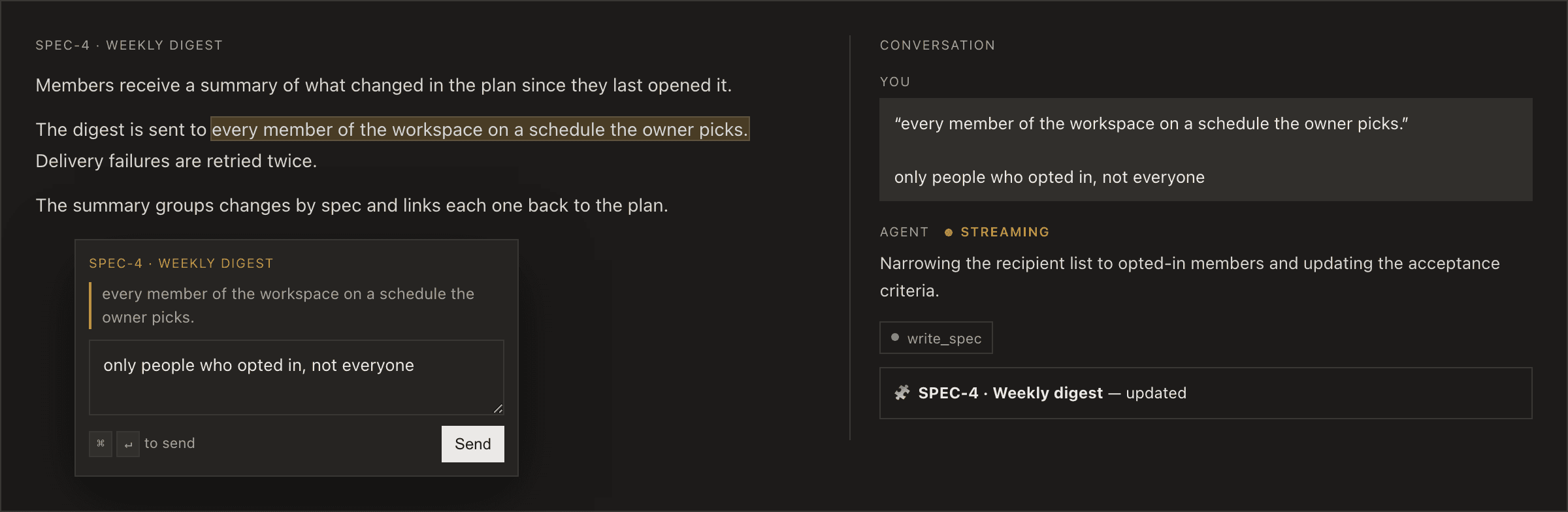
- Select and say it. Highlight text and a small box appears right there. Type your note, press Enter, and it goes to the agent as a request scoped to that passage.
- Everywhere you read. Specs, your epic, your context sources, review files, and the agent's own answers in the chat. One gesture, the same everywhere, so there is nothing to remember about which pane you are in.
- Works on the conversation too. Quote a paragraph of the agent's answer back at it. "This contradicts the last spec" lands on the exact sentence instead of the whole reply.
- The agent knows where you meant. Your highlighted text travels with the note, so "this is too vague" lands on the sentence you were reading rather than the whole document.
- Nothing to clean up. The note becomes a message in your chat and the plan updates in place. There are no comment threads to resolve or inboxes to clear.
Feature
Point at a prototype element and say what to change
Click the exact button, card or heading in your prototype and tell the agent what should be different. The instruction lands in your chat box with the element already identified, so you stop describing which one you mean.
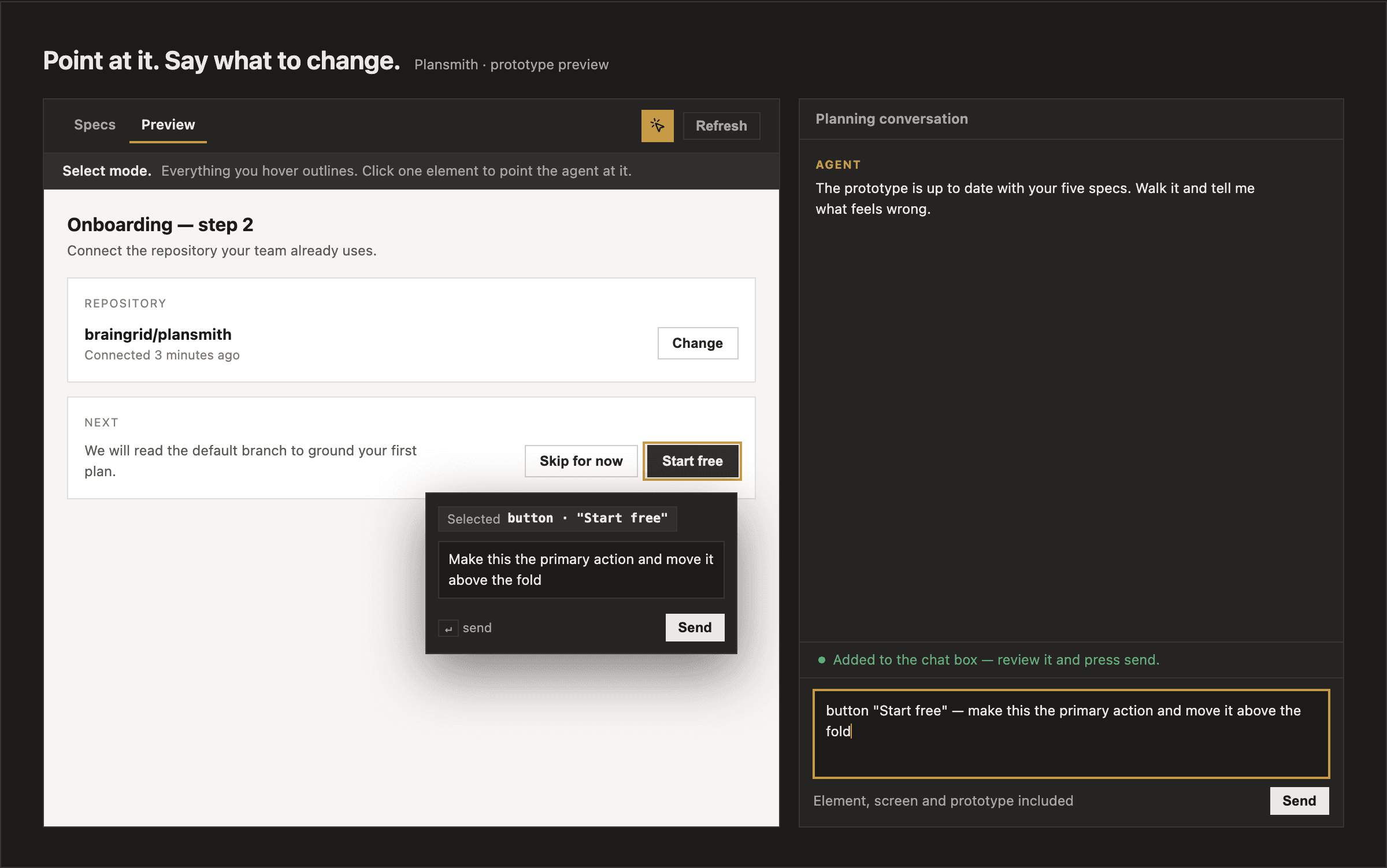
- Click it instead of describing it. Turn on element select over your prototype. Everything you hover is outlined, so you can see what you are about to pick, and the agent receives that element, the screen it is on and the prototype it belongs to.
- Review it before it goes. Your instruction arrives in the chat box, focused and ready, added after anything you were already writing. Nothing is sent until you send it.
- Works on every prototype you have. The plan prototype and any prototype file in the drawer both take it.
Improvement
Point the agent at any spec, epic or file with @
Type
@ in the chat to point the agent at exactly what you mean: a spec, your epic, a context file, or a file in a connected repository. It narrows as you type, and what you picked shows under the box, so you see what the agent will read.Improvement
Jira agent tools, one sign-in
Connect Jira once: the agent’s Jira tools now run on that same connection, acting as you, with no second sign-in. Your profile also gains a My connectors page listing every connection you hold.
Feature
Import your Jira work into Plansmith
Pick a Jira epic or issue and bring it into a plan: issues become specs, sub-tasks nest under them, and images come along. Every imported spec stays linked to its Jira issue, so pushing your refined plan updates the originals, never duplicates.
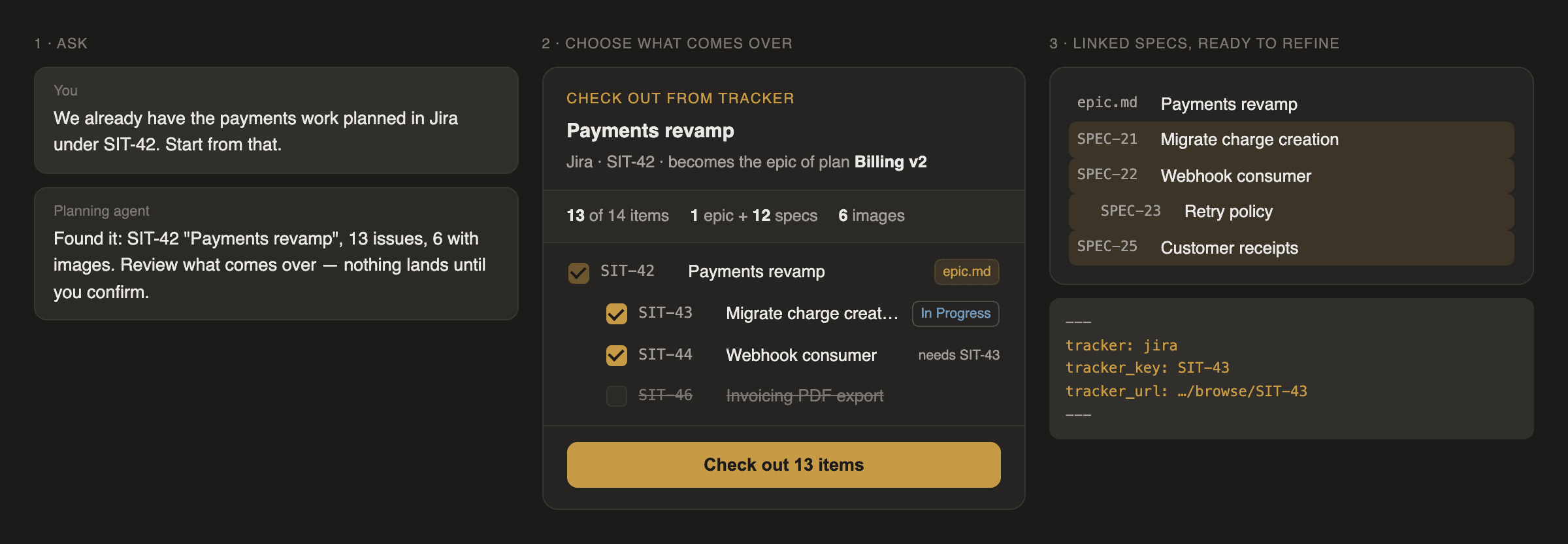
- Choose what comes over. A preview shows the whole tree before anything is written. Untick what you do not want; nothing changes in Plansmith or in Jira until you confirm.
- Keep the round trip. Specs remember their Jira issues. Refine in Plansmith, push back, and the same issues update in place.
- Tell your team. Optionally mark imported issues in Jira with a link to the plan, removed automatically when you push back.
Improvement
One place to say where a spec belongs
“Move under…” is now “Move to…”, listing everywhere a spec can go: the plan root, under another spec, or out into a sub-plan of its own. Moving one out takes everything nested under it, and tells you which handles change before you confirm.
Improvement
Start a plan without saying a word to the agent
Right-click anywhere in the plan tree, including the blank space and a new plan’s empty panel, to add a spec, write the plan’s epic, or start a sub-plan. Writing the epic yourself is new: until now only the agent could create one.
Improvement
Delete anything in your plan tree
Right-click a spec, an epic or a prototype and remove it, or use the Delete in the spec panel itself. Deleting a spec with work nested under it tells you how many items go with it before you confirm.
Fix
Paste markdown and it keeps its formatting
Paste markdown into a spec, a context document or your agent instructions and its headings, lists, checklists and tables now arrive as formatting, not as raw
# and *. Ctrl/Cmd+Shift+V still pastes it raw.Fix
Confirming an Epic always gives you buttons
When the agent writes an Epic it now always ends with a short question you answer with a button, instead of sometimes leaving you to work out what to type.
Improvement
A better message box: Enter to send, and Stop when you change your mind
The message box is now one card that grows with what you write. Press Enter to send and Shift+Enter for a new line, keep typing while the agent is thinking, and press Stop, or Esc, to end a turn you no longer want.
Improvement
Tell the agent what to change, right from its question
When the agent asks "Is this what you had in mind?", picking "Keep chatting" now opens a box where you write what you would change. Your note becomes your answer, so the agent knows what to fix instead of asking again.
Improvement
Confluence: read and write
Plansmith can now create and update Confluence pages and comments, not just read them. Connecting works again too; attempts were bouncing back to the Connectors page with an error before Atlassian’s approval screen ever appeared.
Fix
Panels close when you click away, and only one opens at a time
Open a Spec, click anywhere else, and it closes, the way the Epic and your context documents already did. Opening a second panel now closes the first instead of stacking it underneath. Click away or press Escape, on any panel.
Improvement
Delete files your agent wrote, straight from the tree
Files your agent writes into your context now have Delete in their menu, in settings and in the planning sidebar, with a confirmation naming what you lose. Long files can go too; before, the biggest ones could not be removed anywhere.
Feature
Prototypes now match your app, whatever it's built with
When you ask for a clickable prototype, Plansmith reads the repos you've linked and matches your real product: its routes, its colours, its typography.
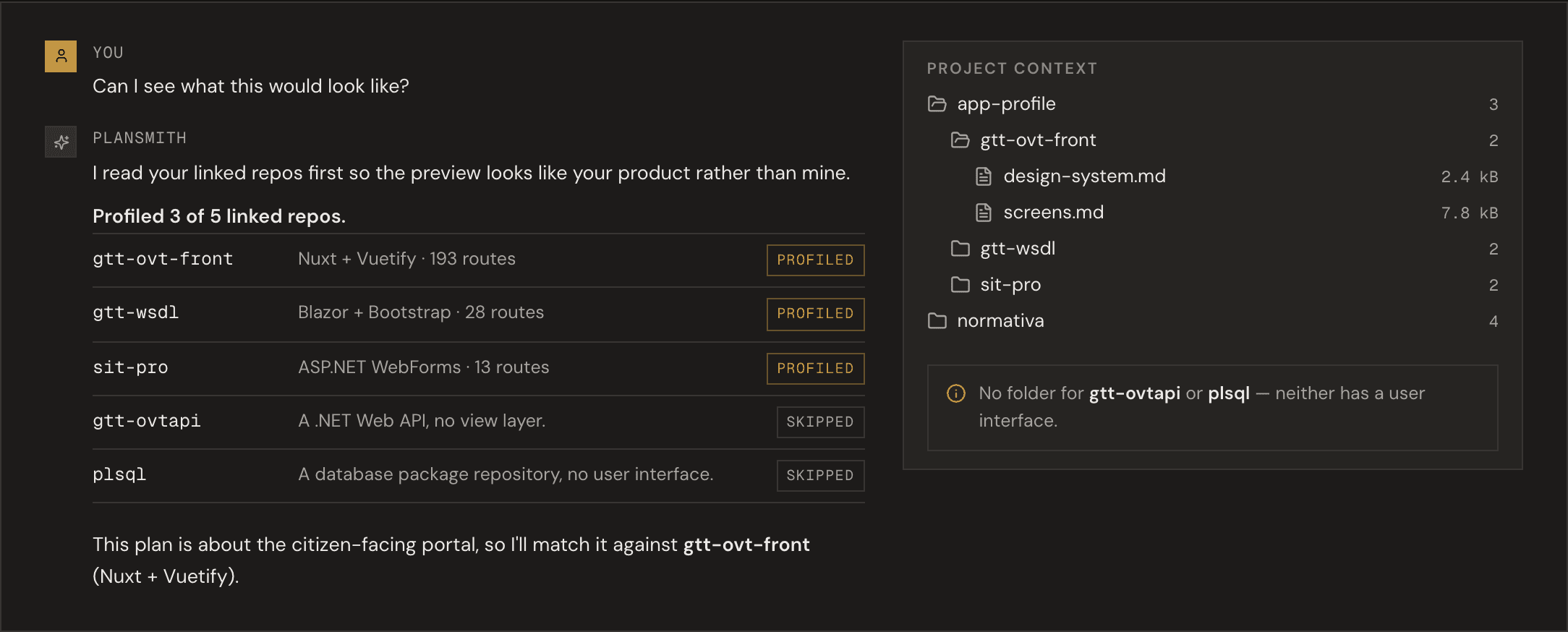
- Beyond Next.js. It now recognises Nuxt, Vue, Angular, Blazor, Razor Pages, ASP.NET, SvelteKit, Astro, Remix, Rails, Django and Laravel, so a prototype looks like your app instead of a generic mockup.
- Every repo that has a screen. Link several repos and it profiles each one with a user interface, then tells you which one it matched your plan against.
- Quiet about the rest. Repos without an interface are skipped and said so plainly. No more "could not be determined" notes about your database repo. And if a repo simply could not be read, it says that instead of claiming you have no screens.
Improvement
See the agent working, then see what it did
While the agent works you now see a live timer and the step it is on. When it finishes, the turn folds into one line with how long it worked and what it read and wrote; click it to see every step.
Feature
One project, all your repos
Plansmith now grounds a project in every repository the work touches, not just one, and a single search reaches across all of them.
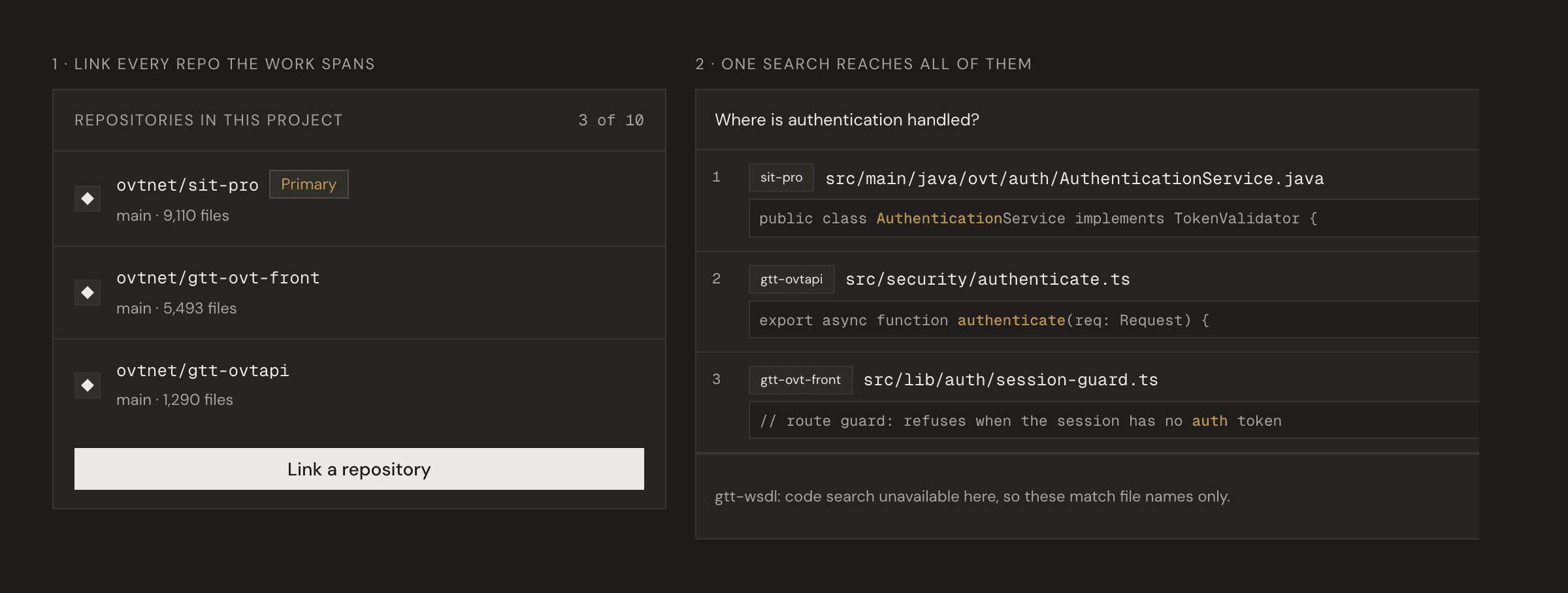
- Link as many repos as the work spans. Frontend, API and infra can live in three repositories and still be one project. Mix hosts freely: a GitHub repo and a GitLab repo sit side by side.
- A Code screen that shows your repos. Project settings now lists the repositories this project reads, right there: link one, unlink one, or pick which is primary, without leaving the page.
- Honest when a repo cannot be read. If a repository is too large to list in full, Plansmith says so on the row instead of pretending it saw everything. If a token has expired, it names the repository that fell back rather than showing it as empty.
Feature
Adversarial review: three models attack your spec
Run /adversarial-review on a spec and three independent reviewer models each hunt for gaps, vague criteria, and contradictions. Findings merge into your spec’s review file, and every one names the reviewers that raised it, so you can see at a glance what all three agreed on and what only one of them spotted.
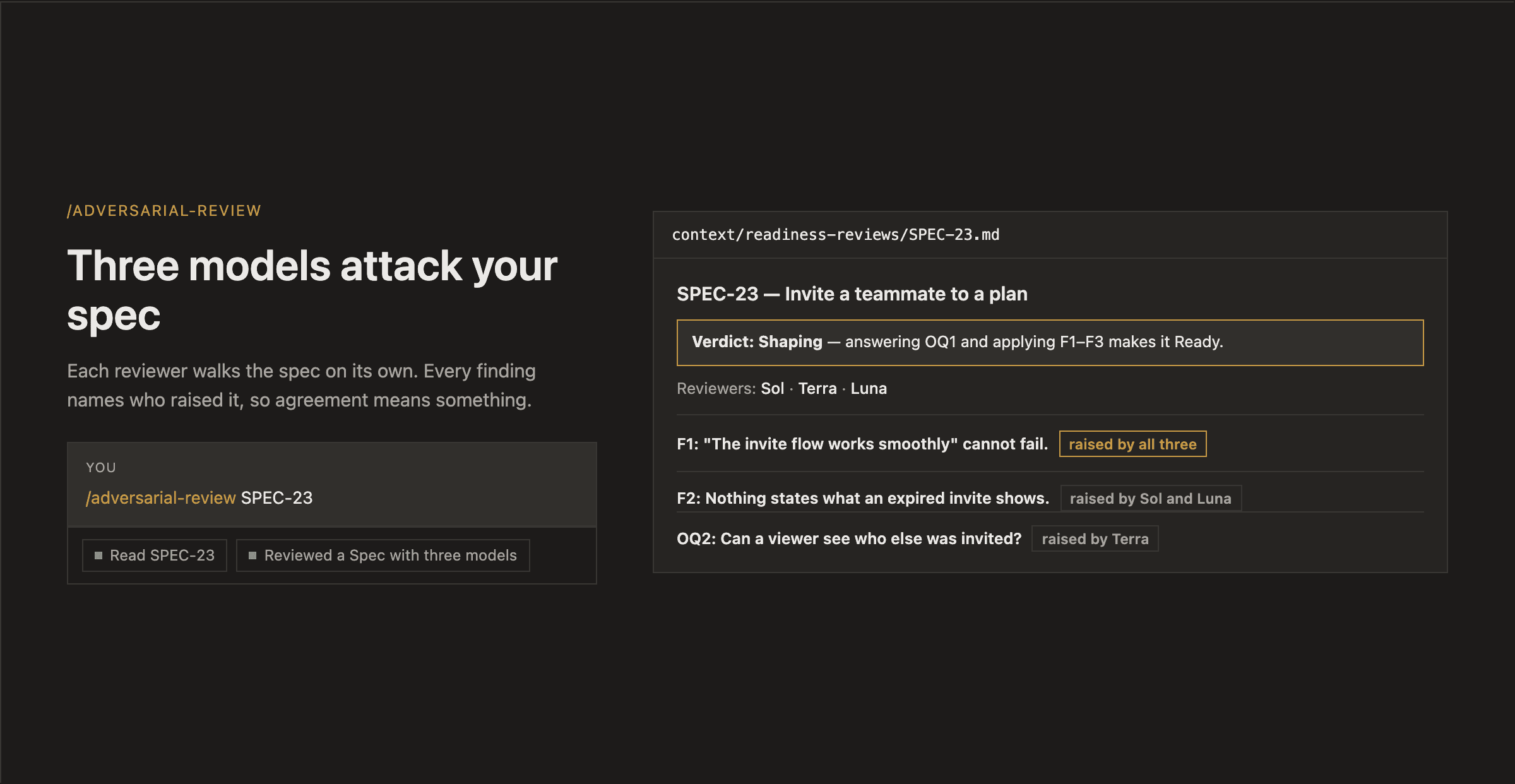
- Same review, harder judges. It follows the readiness review you already use, so findings keep their numbering and history across runs.
- You stay in control. Reviewers only read; your planning agent proposes the fixes and you approve them.
Feature
Choose the AI models that plan your work
Plansmith now runs on three model tiers: a main model for your planning conversations, a worker model for background drafting and verification, and a fast model for summaries. Owners can swap any tier, plus the three reviewer models used by adversarial review, from Settings → Models.
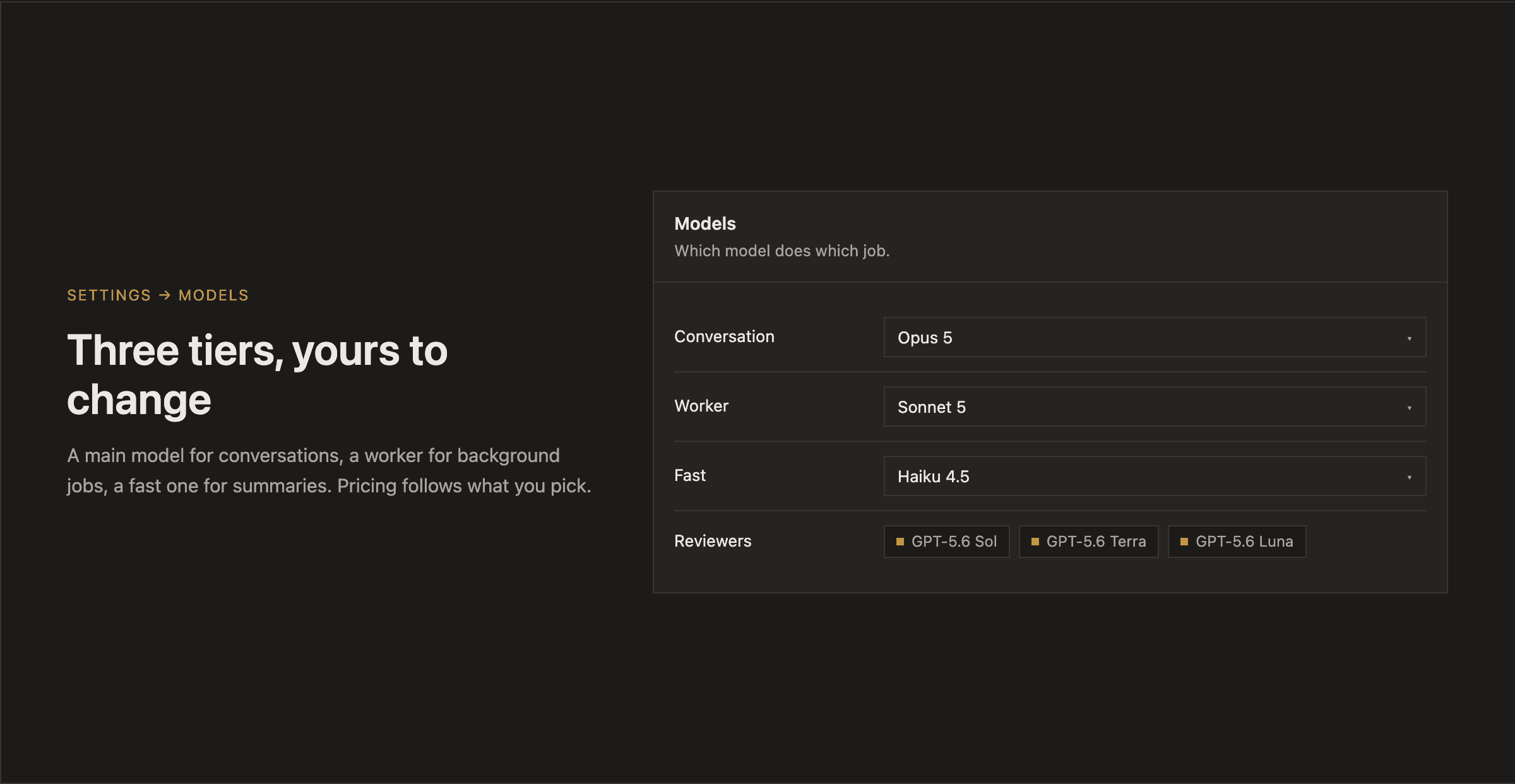
- Sensible defaults. Out of the box you get our strongest model for conversations and faster models where speed matters, so plans get smarter without paying more where it doesn’t help.
- Your account, your models. Pick from Anthropic, OpenAI, Google, and more for any slot. Pricing follows the model you choose.
Improvement
You approve the Epic, then spec one job at a time
Saying yes to the Epic now creates exactly that: the Epic. Plansmith shows how the plan breaks down and writes each Spec when you ask. Say "spec the rest" any time, or ask for one small fix and it skips the Epic entirely.
Improvement
Planning conversations, harder to derail
The planning agent treats your sources, linked repos, and fetched pages as reference material to read, not instructions to follow, so text inside a document does not steer your plan. It also re-confirms a revised Epic before building.
Feature
A new documentation site
Plansmith's docs got a full rebuild at plansmith.co/docs: a guided quickstart, a searchable guide to every surface, and a section for everything you can teach the agent.
- Organized around what you are doing. Start here, Plan the work, Give the agent context, Teach it how your team works, Ship the plan, and Run your workspace. Plus a Developers tab for the CLI, the MCP server and the API, and the Changelog you are reading.
- Search everything. Press Cmd+K on any docs page to jump straight to the answer.
- Everything the agent can be taught, written down. Instructions, Skills and Formats each have a page, and one page that tells you which of the three you actually want.
- Light and dark. The docs match the rest of the site, and now carry a dark mode you can switch to.
- Built for AI agents. Every page has a markdown twin: add
.mdto any docs URL. There is a copy-as-markdown button on each page, and a full-site index at /llms-full.txt.
Improvement
Where Plansmith runs, and what Enterprise includes
Two new docs pages. Deployment options covers Plansmith cloud, reading a Git server that only answers inside your network, and running Plansmith in your own environment. Enterprise features covers what an Enterprise plan carries.
Improvement
Say no to a research proposal
When the planning agent proposes research, you can now turn it down: Cancel sits beside Start research, and the note above the message box names both. If the research already started, the card says that instead of claiming it was cancelled.
Improvement
Your sources are named the way you named them
The activity marks under a planning answer used to show filenames Plansmith invented, like www-example-f1fe2721.md. They now use the titles you gave your sources, and say when a file belongs to another plan. The command is one click away.
Improvement
Delete a whole folder of context at once
A folder could only be deleted once it was already empty, so tidying up meant removing documents one at a time. Delete now clears the folder and everything in it, after telling you what goes. Emptying a folder no longer makes it vanish.
Improvement
You can read what the agent is doing
The activity marks under a planning answer used to read the same cryptic line however different the work was. They now say what happened in plain words: Read the plan, Searched your Context, Wrote context/regulation.md.
Improvement
Long documents keep their endings
Add a document up to 25MB and all of it is kept. No more "the end was left out". The planning agent can also find its way to a passage deep inside a long document by describing what it means, not just by matching its exact words.
Fix
Long research runs keep their work
A long planning run could stop partway through and take its notes with it, while the chat said your research was saved. Runs now save as they go, so what was written is in Context, and a run that stops says so instead of spinning forever.
Improvement
Adding a file you already added
Drop a file or a folder that is already in Context and Plansmith asks what you want: replace what is there, keep both, or skip. One question for the whole drop, instead of quietly making a second copy of everything.
Improvement
Adding a folder of documents is fast now
Drop a stack of files into Context and they land right away, with a running count as they arrive. The tidying and summarising finish in the background, with a note on any document still being read.
Improvement
Documents open in a snap
Opening a document from your Context or your plan no longer re-reads your whole workspace behind the scenes: it fetches just that document. Viewed documents reopen instantly, and the agent reads your context with the same speedup.
Feature
Deep research
Ask a research question while you plan and get a sourced report in your plan's Context, ready to plan against.
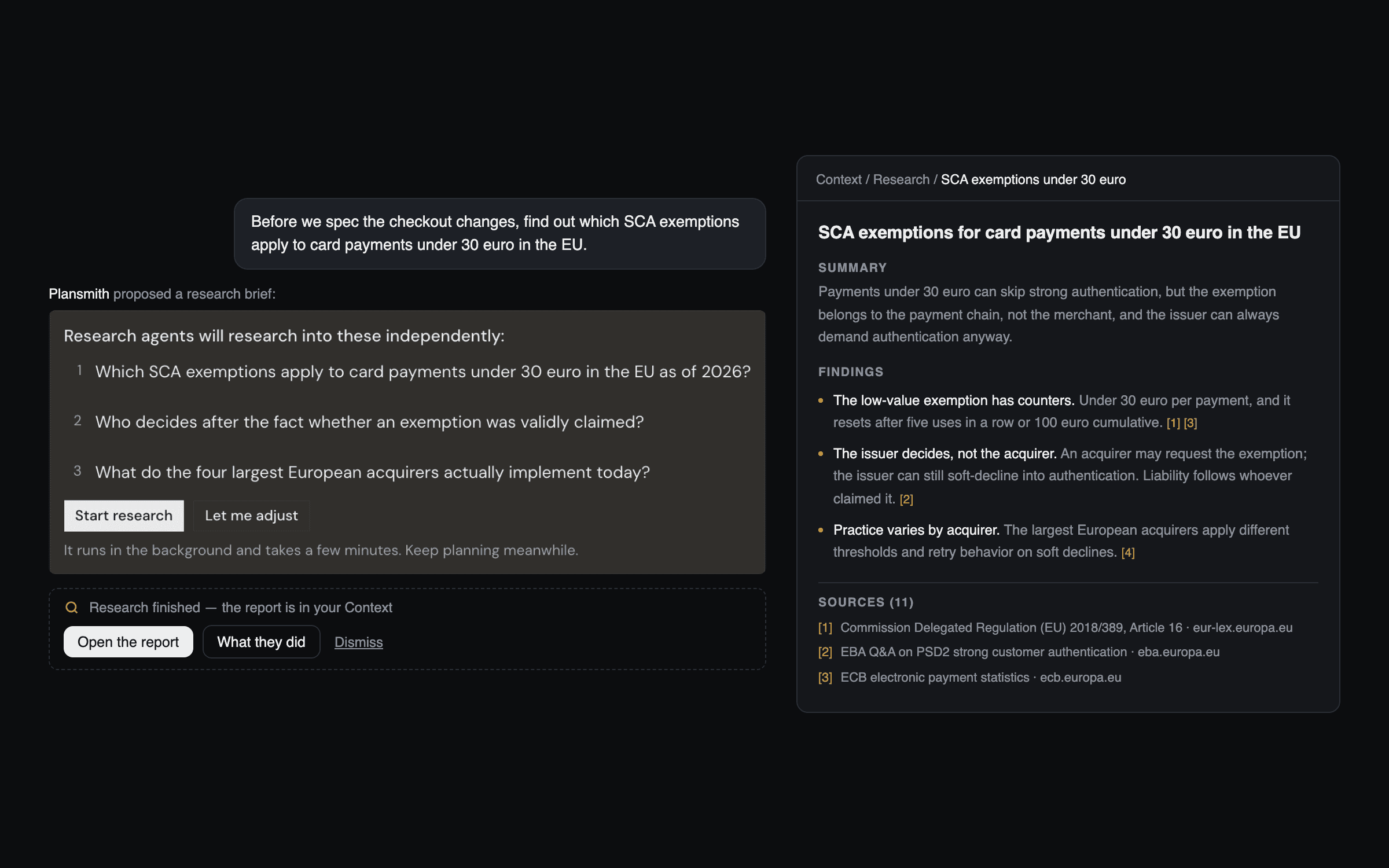
- Ask while you plan. Type
/deep-researchin the planning conversation and the agent proposes a brief of research questions drawn from what you have been discussing. Click any question to sharpen it before it runs. - You approve before anything runs. Nothing starts until you click Start research; the agent cannot start a run on its own. It runs in the background while you keep planning.
- The report lands in Context. A few minutes later a sourced research report arrives in your plan's Context, where the agent reads it like any other source. Every claim carries its citations.
- You pay for what actually ran. A run you cancel partway is billed for the work it did, not the full price of a finished report.
Feature
Build with Plansmith: API, CLI, and MCP
Everything your team does in Plansmith is now scriptable.
- One permission model. Install the CLI with
npm install -g plansmith.co, mint an API key in Settings, or point an agent athttps://mcp.plansmith.co. Your credential reaches exactly the plans you can reach in the app, nothing more. - Docs for humans and agents. Guides live under /docs, and every page has a markdown twin your agent can fetch directly.
Feature
Plan sharing
Plans now work like documents, with an owner and a share dialog.
- Private, shared, or open. Keep a plan private to yourself, share it with specific teammates as viewer or editor, or leave it open to the workspace.
- Shared with me. Plans shared with you appear under "Shared with me", and the share dialog shows exactly who has access.
Feature
Slash menu, images, tables, and diagrams
The Spec and Context editor does much more.
- Insert anything with /. Type
/to insert tables, checklists, and code blocks, edit links with Cmd+K, and render Mermaid diagrams right in the document. - Images in your Specs. Paste or upload images; they stay private to the plan they belong to.
Feature
Connect any MCP server
Bring your own tools, with approval in your hands.
- Your server or the directory. Paste the URL of any hosted MCP server, or connect Confluence and Notion from the new directory with your own account.
- Every tool asks first. A tool asks for your approval the first time it runs, and "always allow" remembers your choice per person, not per workspace.
Feature
Prototypes that look like your product
Colors, fonts, and screen patterns come from your connected repository, so a clickable prototype reads like your product instead of a generic mockup.
- Grounded in your design system. The agent reads your app's real tokens and screens before it draws, so stakeholders review something that looks like the product they know.
Feature
Archive plans
Archive a finished or abandoned plan instead of deleting it.
- 30 days to change your mind. An archived plan leaves your lists with its whole sub-tree intact and can be restored for 30 days.
Feature
Numbered acceptance criteria
Acceptance criteria on every Spec are now numbered: AC1, AC2, and so on.
- Stable handles. Point at a criterion in a review or a conversation and its number never changes. A Spec's readiness now reflects how well its criteria cover the work.
Feature
Folders in Context and Specs
Organize both trees with folders.
- Full file management. Create, rename, drag to reorder, and delete from each row's menu. Drop an entire folder from your desktop and its structure arrives intact.
Feature
Self-hosted git on the Team plan
Ground plans in code that lives on your own servers.
- Three hosts. GitHub Enterprise Server, self-managed GitLab, and Bitbucket Data Center connect on the Team plan.
Improvement
Plans have addresses
Every project, plan, and Spec has a stable, readable link: your workspace at
app.plansmith.co/your-team, plans as PLAN-7, Specs as SPEC-12.Improvement
One account menu
Switch workspaces from the account menu, and read your monthly usage at a glance from the ring around your avatar.
Improvement
Rename plans in place
Rename a plan from the plan switcher or its card menu, no detour through settings.
Improvement
Project cards show status
A project card signals its status in the icon and reveals the details on hover.
Improvement
Add usage mid-cycle
Running low before renewal? Add usage from Billing in two pack sizes that mirror the monthly plans.
Fix
Your text stays yours
Typing in the file or Spec drawer while the agent updated the same item could bring your draft back wrong. Drafts now survive.
Fix
Push is honest about prerequisites
The push button no longer shows before a tracker is connected, and a plan with no Specs explains why it cannot push yet.
Fix
Billing refusals name the fix
When a change is refused for billing reasons, the message now says what to do about it instead of a generic "that change didn't stick".
Fix
Notices stay until read
Notices in Context used to vanish on their own. They now stay until you dismiss them.
Fix
Setup steps answer for this project
The getting-started checklist now reflects the project you are looking at, not the whole workspace.